

Law firms working to become more efficient and offer a better client experience are looking to tech tools for support. This is especially true in today’s work environment which requires ensuring a distributed workforce remains collaborative and productive.
Unfortunately, each app, tool, and service you add to your tech toolbox results in more complexity. And it often becomes a disjointed mess. Microsoft Teams is a great solution if you’re looking for a simple way to centralize your work and boost your team’s efficiency.
Teams is a powerful tool that’s more than just chat or messaging. When implemented properly, it can serve as the central nervous system of your law firm, bringing your entire team (regardless of where they work) together.
Whether you’re a seasoned MS Team’s user or a firm newly exploring its features, this guide will help you utilize this software to increase your firm’s efficiency.
Introduction to Microsoft Teams
Microsoft Teams is an impressive part of Microsoft 365 (formerly known as Office 365). Just like the other apps inside Microsoft 365, Teams is cloud-based and available in-browser, with an installable desktop application, and via mobile devices.
At its core, Microsoft Teams is a collaborative chat and instant messaging app for teams, similar to other apps like Slack and Google Workspace. Of course, other features make Microsoft Teams a great tool for law firms, including:
This is only a sampling of what Teams has to offer for your law firm. It’s also quite affordable when compared to other options out there.
If you already use Microsoft 365, you may already have access to Teams. It’s currently included inside Microsoft 365 Business Basic which runs $5.00 per user/month. It’s also included inside Microsoft 365 Business Standard which costs $12.50 per user/month.
Introduction to Microsoft 365
Microsoft 365 (also known as Office 365) is a cloud-based SaaS solution by Microsoft. It features essential productivity tools any business can use to boost efficiency and team productivity. In addition to Teams, Microsoft 365 also includes popular apps such as:
Microsoft 365 offers many benefits for your firm, especially if you wish to move away from an on-premise server. For example, Microsoft 365 is cloud-based, so there’s no need to own a server that is costly and difficult to manage.
Microsoft 365 also features a predictable monthly cost, automatic updates, heightened security, and services that work anywhere on any device. It’s the perfect solution for a distributed team that must work between home, the courtroom, and the office.
Do I Need Microsoft 365 to Use Teams?
Not necessarily. The basic version of Teams is currently offered for free without a Microsoft 365 subscription. However, some of the best features of Teams involve the collaboration between the other Microsoft 365 apps.
If you’re a new firm owner looking for practice management solutions, you should consider moving forward with the complete version of Microsoft 365, including Teams. It’s a great way to seamlessly consolidate all of your practice needs, from contract creation to client communication.
Security and Compliance in Microsoft Teams
Microsoft Teams is built on an enterprise-grade cloud, delivering the advanced security and compliance capabilities that are paramount for law firms.
Data Security
Data security is crucial for law firms, given the sensitive nature of the information they handle. Microsoft Teams does just that by encrypting data at rest and in transit.
Data at rest is data that is stored on the servers, while data in transit is data that is transferred over the network.
Microsoft Teams uses Advanced Encryption Standard (AES) 256-bit encryption, one of the strongest block ciphers available, to secure data.

Cybersecurity for Law Firms:
Cybersecurity, especially for law firms, is nothing to be trifled with. Utilize this article to understand the risks, the best practices, and more.
Compliance Standards
Microsoft Teams is designed to meet a broad set of international and industry-specific compliance standards, such as ISO 27001, ISO 27018, SSAE16 SOC 1 and SOC 2, HIPAA, and EU Model Clauses.
Microsoft has a dedicated team of compliance professionals who continuously work to keep its services in compliance with the latest standards.
Access Controls
Microsoft Teams allows administrators to set access controls and permissions to ensure that only authorized individuals can access certain information.
Administrators can set user permissions at a granular level so that team members can access the information they need while restricting access to sensitive or confidential information.
Audit Log
Microsoft Teams maintains a comprehensive audit log that records every action taken within the platform. This is crucial for law firms as it allows them to track changes made to documents, see who accessed a document and when, and monitor the actions of team members.
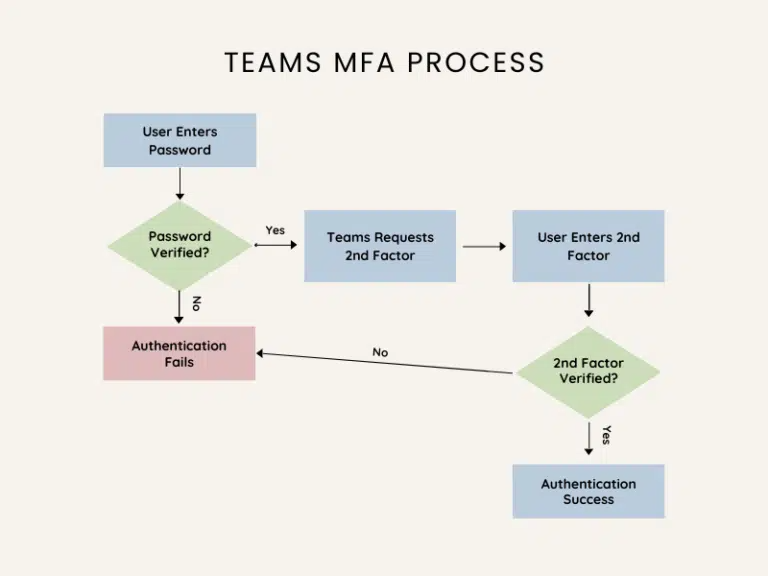
Multi-Factor Authentication (MFA)
MFA is an access control method where a user is granted access only after successfully presenting two or more pieces of evidence (or factors) to an authentication mechanism.
Microsoft Teams supports MFA, ensuring that even if a user’s password is compromised, an attacker can’t access the account without the second form of authentication.
Microsoft Teams as the Hub of Your Law Firm
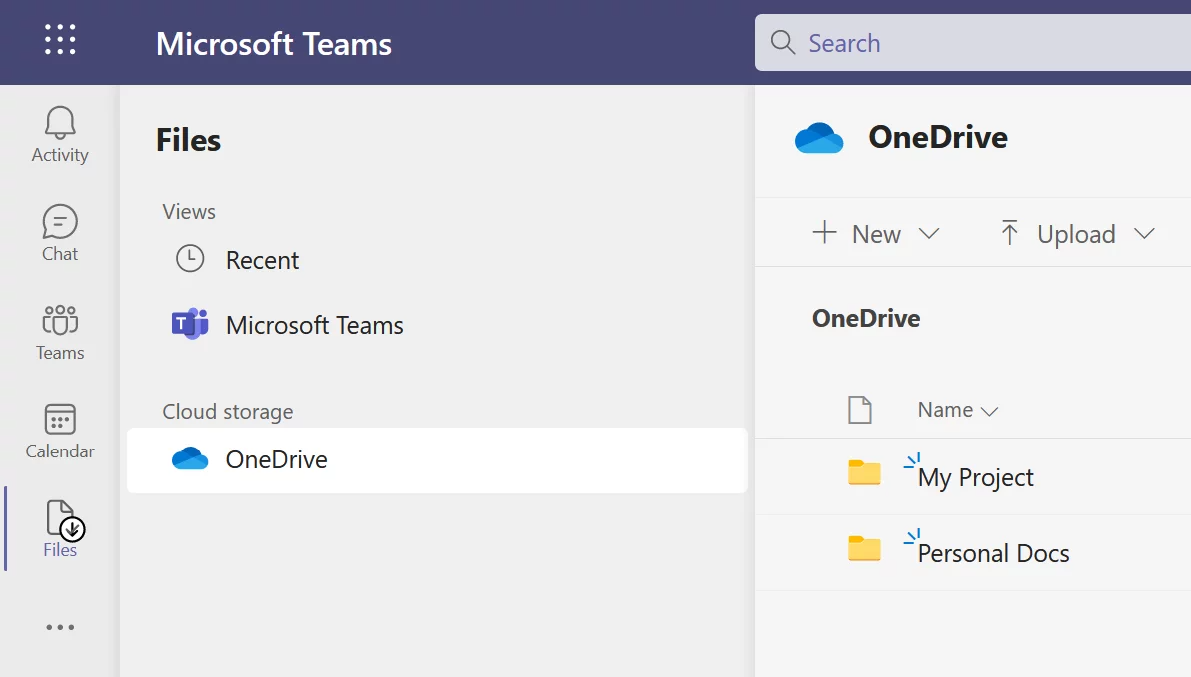
One of the best ways to use Microsoft Teams is to make it the hub or dashboard for the rest of your Microsoft 365 services, even those that go beyond communication.
For example, you can configure your Microsoft 365 in a way that enables access to your SharePoint and OneDrive shared folders within Teams. This way, everything is at your fingertips within one interface.
Inside Teams, from one simple dashboard, you can access your:
It’s also possible to connect other non-Microsoft 365 apps to Teams via connectors. For example, you could connect Google Drive or Dropbox for file storage, DocuSign for document signing, or even Trello for project management.
Consolidate Separate Disjointed Tools
One of the best benefits of using Microsoft Teams is consolidating all of your separate and disjointed apps and tools into one comprehensive platform. Believe it or not, you and your team spend more time than you realize on simple app switching.
According to a recent survey completed by Slack, 68% of app users say they spend at least 30 minutes per day switching between apps. And 56% report that switching between apps makes it harder to get essential work done.

Constant app switching leads to loss of momentum. It can also lead to data loss and costly mistakes if you’re not careful. And in today’s distributed workforce, it can make finding files, connecting to meetings, or simply looking up client information tedious.
All those “where can I find ‘X’?” emails in your inbox add up, don’t they?
A tool like Microsoft Teams can help you avoid app switching, especially when using critical communication tools. For example, Teams removes the need to use Zoom, Webex, or GoToMeeting for online meetings, Skype for video calls, and Slack for instant messaging.
Instead, all of those tools are available inside one simple app and can be used simultaneously for seamless collaboration.
Why Every Law Firm Should (Probably) Use Teams
Let’s recap. We believe that nearly every law firm out there can benefit from using Microsoft Teams. The benefits are plentiful:
Visualize Microsoft Teams Within Your Law Firm
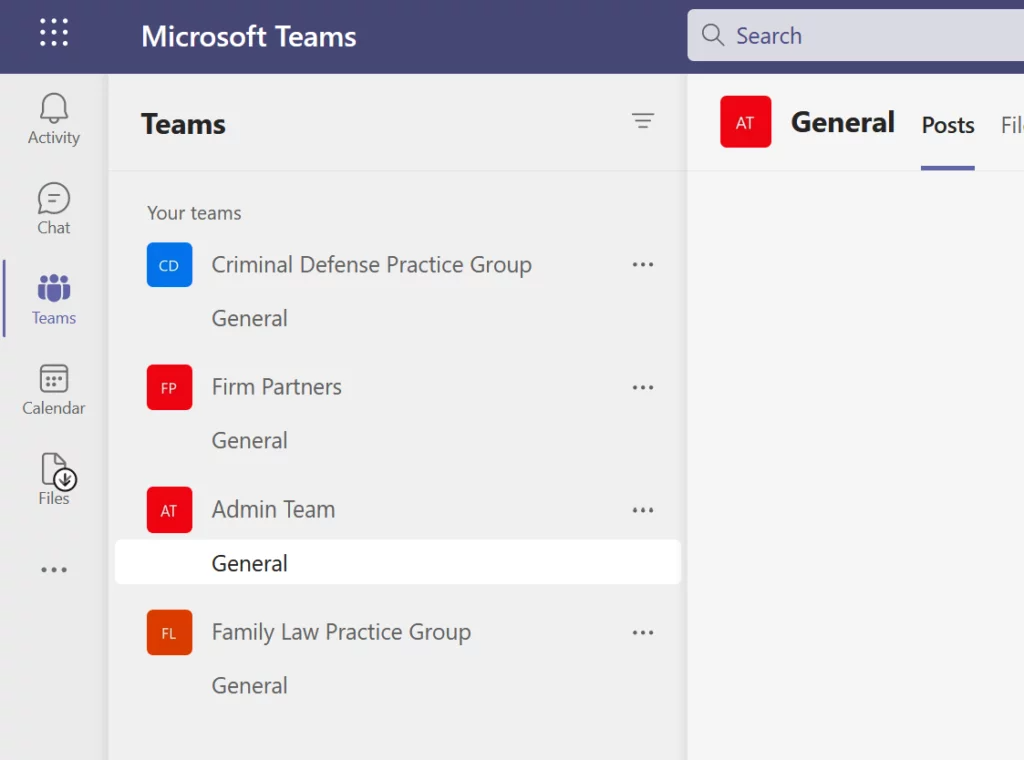
It’s easy to read the benefits of Microsoft Teams and think it might be a good solution for your firm. Yet, to truly grasp what it can do, it’s important to visualize Teams inside your daily workflow. How can Teams impact your firm’s day-to-day tasks?
How to Set Up Teams for Your Law Firm
Ready to take advantage of Microsoft Teams within your law firm? If so, there are a few steps you must take to ensure you make the most of your new tool. Let’s dive right in.
First things first, let’s review some key Teams terms you should know before you get started:
1. Set Up Teams With Microsoft 365
We recommend setting Teams up with Microsoft 365, not in a vacuum. Otherwise, you’ll double your work, and your overall Microsoft 365 system may become disjointed. You’ll want your Teams to follow the same organizational structure as the rest of your Microsoft 365 suite.
Start by determining which Microsoft 365 option is right for your firm then, move forward through the installation process.
2. Start With Microsoft Groups
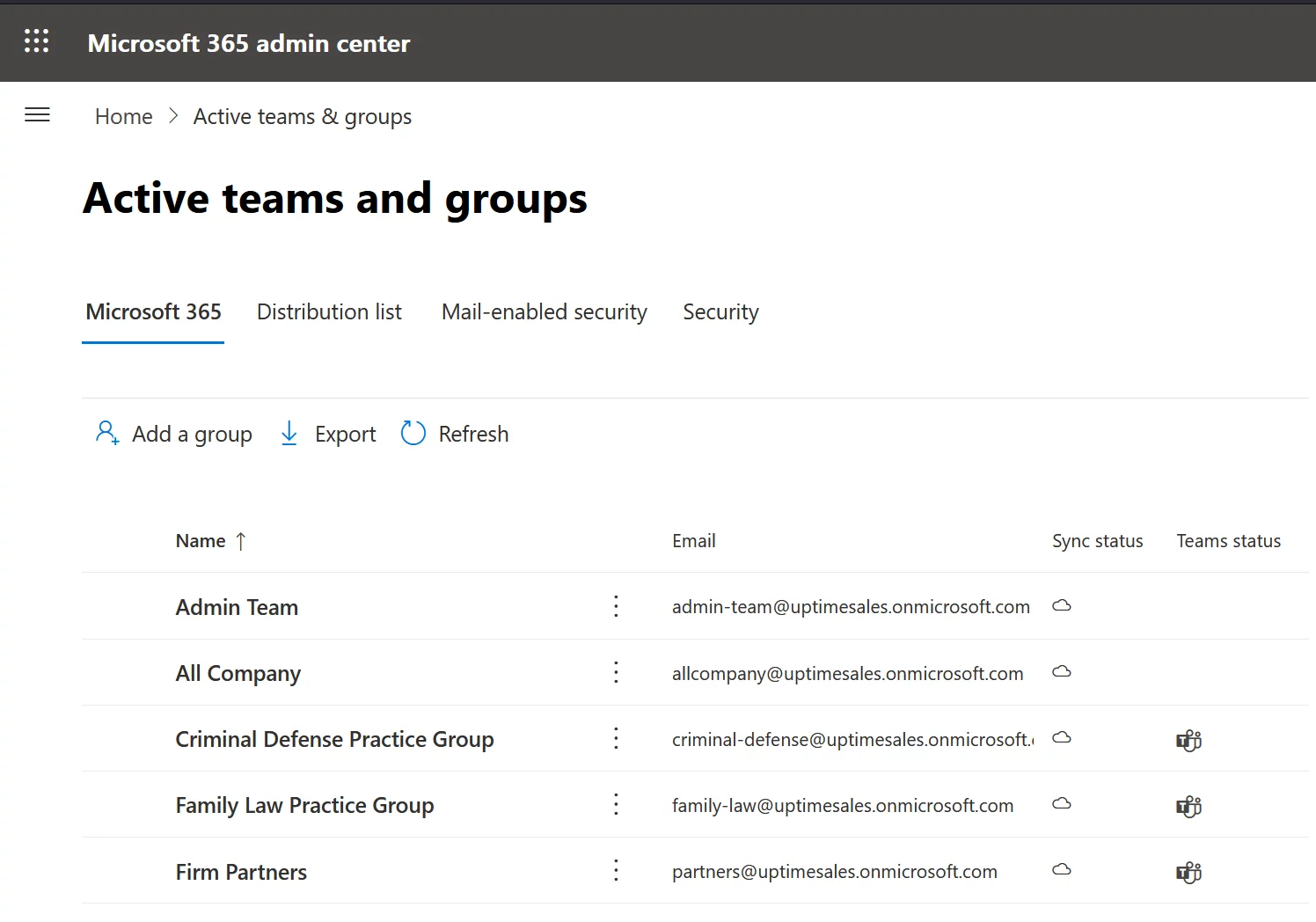
During the installation process, you’ll have the opportunity to create groups for your entire 365 suite. This is a critical step in determining how you work within Teams. A group can be any logical group of people or resources that make sense for your firm.
Some examples of groups you could create include:
To determine which groups you require, make a list of the groups that require their own dedicated resources such as specific documents, calendars, or folders. For easy collaboration and organization, you’ll want to keep resources as separate as possible.
Let’s review an example group setup. Say your law firm has a total of eight people, including two partners, two associates, two paralegals, and two administrative support people. And your firm practices both business law and family law.
The following groups might be a perfect mix for your firm:
Once you decide which groups make the most sense for your firm, you’ll want to assign the appropriate team members to their groups. For example, your partners should have access to all of the groups while administrative staff will need access to the Admin channel, general channel, and your practice area groups.
Tip: For step-by-step instructions on how to define groups within Microsoft 365, read this post from Microsoft.
3. Set Up a Team for Each Practice Area or Functional Group
The next step is to set your teams inside Microsoft Teams. We recommend creating a team for each practice area or functional group that will require constant contact. For example, you may set up a team for:
After you create your teams, go ahead and invite each individual within your firm to their specific teams.
Tip: For step-by-step instructions on how to create teams within Microsoft Teams, read this post from Microsoft.
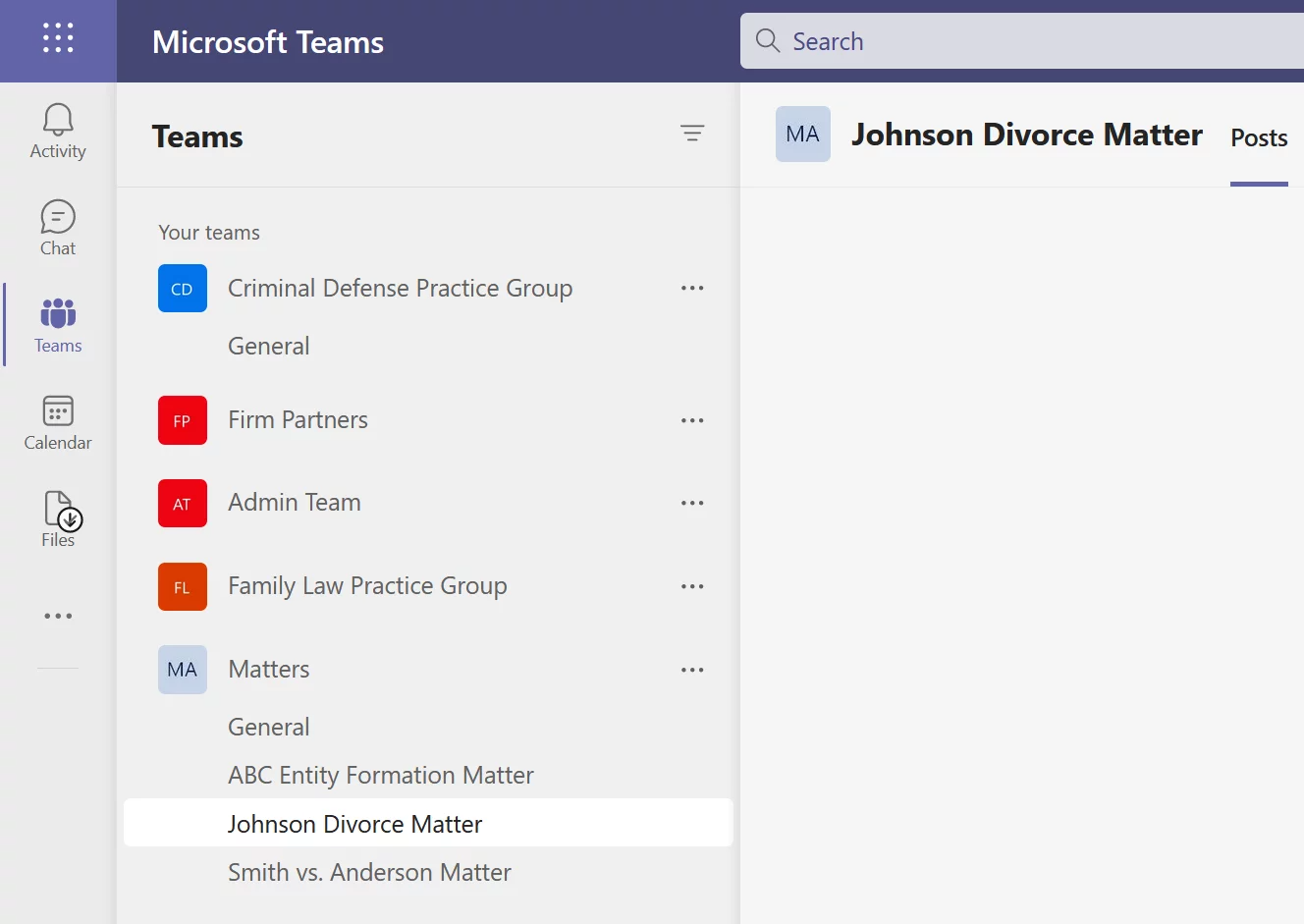
4. Create Channels for Each Individual Matter
When you get started with Teams, you’ll automatically have a general channel that everyone within your firm can use for general team banter, announcements, or communication. Even still, we recommend creating channels for each individual matter within your set teams.
This ensures communications are streamlined and all in one place for each matter. Plus, you can pin specific tabs to each channel that include tools such as SharePoint or individual files, so team members can find case materials quickly.
7 Expert Tips for Using Microsoft Teams Within Your Practice
Microsoft Teams is incredibly easy to use with a minimal learning curve. Plus, there are plenty of tips and tricks you can use to make Teams even more efficient for your practice.
Integrate Microsoft Teams With Your Law Practice Management Software
Microsoft Teams can handle all internal and external communications for your firm and can act as the dashboard for all your other Microsoft 365 tools. However, you’ll need more to successfully run your firm. We recommend integrating Teams with your existing law practice management software, if possible.
If you don’t have LPM software as of yet, it’s time to find the best fit for your firm. LPM software should include critical firm management tools and features such as:
The LPM you choose should also integrate seamlessly with your other necessary third-party apps such as Microsoft Teams. While this may seem obvious, it’s easy to forget.
Making Everything Work Together Seamlessly
Microsoft Teams (or any law firm software for that matter) won’t magically organize itself right out of the box. To best benefit your law firm, it’s best to reach out to a legal technology professional who can help you implement Microsoft Teams alongside the rest of the Microsoft 365 suite.
General IT consultants and companies are rarely suited to meet the unique needs of a law firm. Uptime Legal has helped hundreds of law firms and thousands of legal professionals streamline and level up their practice using technology tools such as Microsoft Teams.

Managed IT Services for Law Firms:
Whenever you’re ready, we’re here to managed your IT. Read this article to learn more about the value of outsourcing your IT to a professional.
Frequently Asked Questions

Uptime Legal’s Technology Solutions
Cloud, software, IT, and document management built for today’s law firms.