
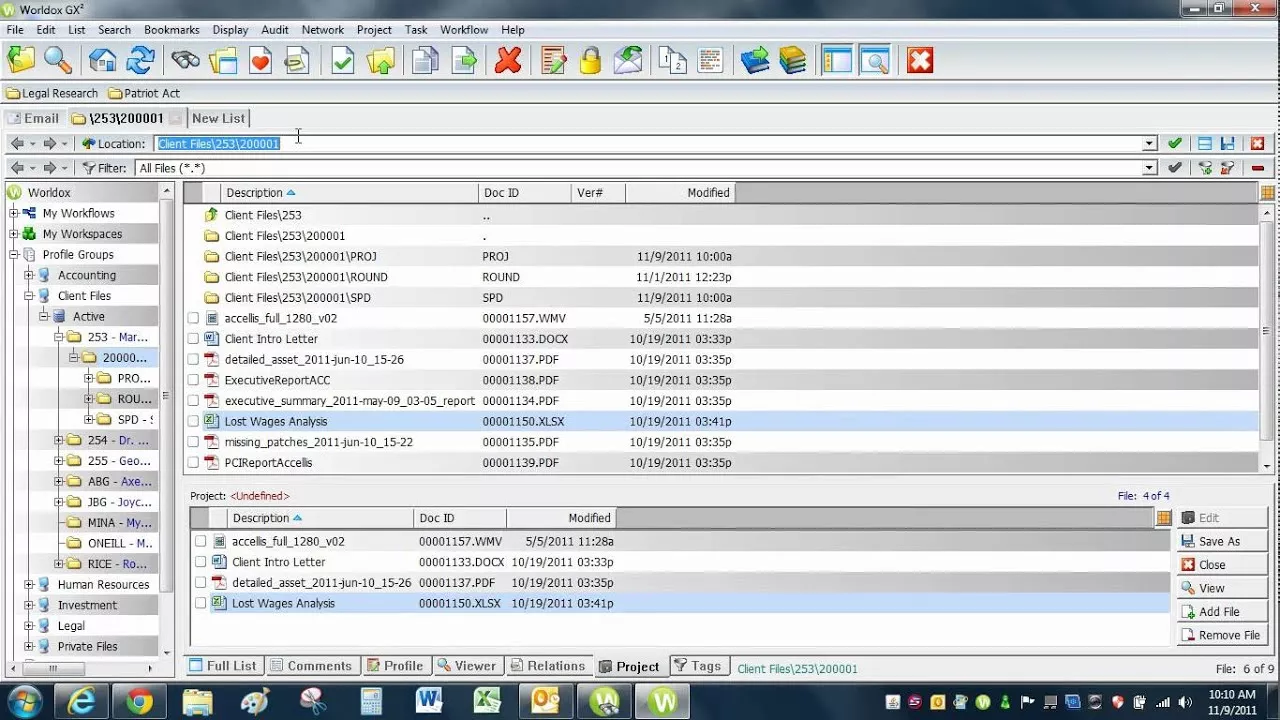
Worldox is a long-standing Document Management System (DMS). Worldox is used by law firms as well as other industries across North America.
Today, more and more firms are looking to break the chains of expensive, in-house servers, rid themselves of the headaches of managing IT, and empower their team to work from anywhere. This prompts many law firms to look to the cloud.
In this article, we’ll explore how to move and use Worldox in the cloud.
Who This Guide is For
This guide on running Worldox in the cloud is for anyone who uses Worldox (or plans to) and wants to explore doing so in the cloud. This includes:
In this, our ultimate guide to Worldox cloud-hosting and moving Worldox to the cloud, we’ll walk you through everything you need to know to assess and implement Worldox in the cloud.
Introduction to Worldox
If your firm already uses and knows Worldox, feel free to skip ahead. If you’re new to Worldox or considering it for your firm, we’ll provide a brief overview.
Worldox, by World Software, is a long-standing Document Management software. Worldox is server/desktop-based software, which means it can run on-premise, on your firm’s in-house servers, or hosted in Private Cloud (which we’ll cover shortly).
Editions
Worldox comes packaged in three editions: Professional, Enterprise, and Cloud.
Note that each of these three editions is effectively the same software, but with slightly different configurations or deployments.
Worldox Features
At a high level, the Worldox software provides:
Worldox Requirements
While powerful, the Worldox software comes with steep requirements. (We’ll cover how to meet these requirements cost-effectively later).
Note that Worldox not only requires a dedicated server, but in most cases, it requires two dedicated servers. One server serves as the main storage server (and should have plenty of storage for your documents), the other serves as the index server, which maintains your index and search (and should have plenty of power to keep the search running fast).
When Worldox is a Good Fit
Worldox is a solid application, and depending on the nature of your law firm, it may be a good Document Management fit.
Don’t Sacrifice the Right Software for the Cloud
The cloud brings many benefits to small and midsize law firms (which we’ll enumerate shortly). Some law firms flirt with the idea of moving away from robust Document Management software (like Worldox) to simpler, cloud-based tools like Google Drive, OneDrive, or Dropbox.
Avoid this temptation. Simple cloud storage tools lack the robust feature set of true Document Management software (such as version management, full-text search, and document tagging).

Best Legal Document Management Software:
Read this article to understand and compare your top options to choose the best Legal DMS for your firm.
Why Worldox is Better in the Cloud
Worldox is strong software. And it’s even better in the cloud.
For most law firms, life is simply better in the cloud, and Worldox is no exception. You can run Worldox in the cloud, and before we explain exactly how Worldox cloud hosting works, I’ll take a moment to explain why, in most cases, Worldox is better in the cloud.
1. The Best of Both Worlds
The cloud brings mobility, accessibility, and security. Worldox provides a rich, comprehensive platform for managing your firm’s clients, cases, documents, and accounting. Bringing both together gives your firm a “cake-and-eat-it-too,” best of both worlds scenario.
By running Worldox in the cloud, your firm can keep the robust legal software that your firm is committed to and relies on, while enjoying the advantages of the cloud.
2. Managing Servers & IT is a Pain
For a long time, managing and supporting on-premise servers was simply a necessary evil to run quality legal practice management software. Applications like Worldox bring a lot of value to law firms, but it requires a server (one way or another), so law firms had to suck it up and get a server.
That server requires a lot of maintenance, both proactive (to keep it up and running) and reactive (fixing things when they break). To run Worldox on-premise, you’ll need to:
Running Worldox in the cloud (Worldox hosting) on the other hand, gives you the benefits of having Worldox, without the inherent drawbacks of server ownership.

3. Work from Anywhere
Being tied to one computer, one office, or one location is a huge disadvantage to the modern law firm. Attorneys and support staff need to be able to work anytime, anywhere. They need to be able to enter billable time from home, review a contract while traveling to the airport, and check their court deadlines from a Chromebook while at a client site.
Running Worldox in the cloud gives your entire firm the same access to your software (and, with the right solution, all of your applications, documents and email) from any kind of device and any location.
Unchain yourself from the office, ditch clunky VPN and remote-computer-login “solutions.” Worldox in the cloud, via a Private Cloud, provides a secure, easy-to-use Virtual Desktop that gives you access to your legal software, documents, and email from anywhere.
4. Data Security & Compliance
As law firms, we have ethical obligations to keep our firm and client data secure. Cyber-attacks are only becoming more prevalent, and compliance requirements are only more stringent.
Your Worldox and your law firm’s data are orders of magnitude more secure in a reputable cloud platform. Cloud service providers are in the very business of keeping their clients’ data secure, and usually employ the following security measures.

Now compare that to a server, in your law firm’s office, sitting unmanaged, in a coat closet or copy room. It simply doesn’t make economic sense for all but the largest law firms with in-house servers to invest the resources necessary to build this level of security.
But it does make economic sense for a cloud provider to invest in building and managing bank-grade security. And as a client within that system, you get your own slice of that Fortune 500 caliber infrastructure.
And don’t make the mistake that just because your data is in your physical building, it’s somehow magically more secure. If your firm (a) has a server, and (b) is connected to the Internet, then you’re already on the cloud, in a way that hackers and other online threats can reach you. The only question is: Who’s managing your security, or is it being managed at all?

Cybersecurity for Law Firms:
Cybersecurity, especially for law firms, is nothing to be trifled with. Utilize this article to understand the risks, the best practices, and more.
5. Work With Windows and Macs
More and more law firms are using Mac computers, at least in part. Some (typically smaller) law firms are all-Mac by practice. Others have a mix of Windows and Mac computers. Even law firms that are all-PC in the office often have members, even senior partners, who use a Mac from home.
Most desktop-based law firm software is Windows-based, which severely limits Mac users’ ability to work from their Mac computers. (Historically, this required running Parallels or similar virtual Windows software on your Mac, which is infamously slow and clunky.
Running Worldox in the cloud, particularly in a Virtual Desktop platform, gives your Mac users the exact same access to your Worldox (and the rest of your law firm software) as your PC users. Virtual Desktops are, by their nature, platform agnostic.
6. More Reliability, Less Downtime
Capable Private Cloud platforms like Uptime Cloud are built with enterprise-grade infrastructure and managed round-the-clock by professionals. This minimizes downtime for your firm and maximizes productivity. Professional-grade Private Cloud solutions typically include:
All of these measures add up to reliability and uptime for your systems and your law firm.
7. Flexible & Scalable
The cloud is flexible and scalable, and running Worldox in the cloud is no exception.
With a Private Cloud solution, you can add (or remove) users, applications, storage, and other features when you need them. Unlike the rigidity and financial commitment of server ownership, the cloud helps your law firm stay agile.
8. More Economical
We’ve worked with many law firms to conduct a side-by-side financial analysis of cloud vs. on-premise IT; and we consistently find that the Total Cost of Ownership is notably less in a Private Cloud.
This is almost always the case, and factors in the up-front costs, monthly, and potential unplanned IT costs associated with server ownership and local IT support.
We’ll cover the economics of Worldox in the cloud in more detail below. (And we’ll provide some nifty tools for you to conduct your own financial analysis.)
9. Centralization
In today’s Work From Anywhere and hybrid work models, creeping decentralization becomes a real risk.
Law firms with multiple locations have been working against this problem for a long time. Now add employees that work (partially or entirely) from home, and the risk of data and applications being spread in too many different locations becomes pronounced.
A Private Cloud platform serves as your firm’s single, central hub, where Worldox and all of your firm’s applications and data lives. One system to log into, one virtual workplace, regardless of the geographical makeup of your team.
Worldox in a Private Cloud
Now that we’ve covered why Worldox is better in the cloud, let’s talk about how exactly Worldox in the cloud works. To do that, let’s first take a short step back and describe the difference between cloud-based (web-based) software and desktop/server-based software.
Before cloud computing was mainstream, most software in the world (including practice management software such as Worldox ) was installed on the firm’s on-premise server, and ran from each of the employees’ desktop computers. The software’s “engine,” or core components (including the database) lived on the server. All of this meant that using this software, such as Worldox, necessitated a server.
That is: Owning (and therefore maintaining) a server became a fundamental prerequisite to using the software. Owning and managing servers and in-house IT was a requirement, and sometimes viewed as a necessary evil, to use law firm management software.
And that’s simply the way it was.
But not today. Today, we have the technology that we call a Private Cloud. A private cloud is a hosted, managed IT platform that provides the same (or better) function that a server would; it hosts a law firm’s legal applications, documents, email, and more, and provides greater mobility, reliability, and security while doing so.
Server-based software like Worldox requires a server, which hasn’t changed. And in the case of a private cloud, the private cloud is the server.
To be more specific, a typical law firm’s private cloud for Worldox will often include:
The “Private” in Private Cloud
Private Clouds are so-called because every law firm (called a “tenant,” in cloud computing parlance) has its own segregated, dedicated working environment. In most cases, that means:
If you’re not familiar with these technologies: What it amounts to is that your law firm has its own private space for its software, documents, and data, separate from other law firms, which gives your firm an added level of data security and privacy.

Private Cloud 101 for Law Firms:
Understand Private Cloud by reviewing how law firm software evolved from desktop-based to cloud-enabled systems.
That’s the “back-end” of running Worldox in the cloud. You and your team will interact with the Private Cloud via what’s known as a Virtual Desktop.
Worldox in a Virtual Desktop
We’ve covered the benefits of running Worldox in the cloud, and how a Private Cloud is a means to that end. But what does working in a Private Cloud look like? How does each person in your firm use it?
The answer is: a virtual desktop.
A Virtual Desktop is a desktop, like the Windows or Apple desktop you log into and use at home and work, that is hosted in the cloud, and that you can access anytime, anywhere. Typically, your Virtual Desktop will have the software that you need every day, like Microsoft Word, Excel, Outlook, along with your law practice management software, accounting software, even your document management software.
The Virtual Desktop makes your law firm’s software, which is otherwise only available from your work computer or while connected to your office’s servers, available from any computer in the world.
Virtual Desktop solutions are sometimes also referred to as “Desktop-as-a-Service,” or DaaS (analogous to “Software-as-a-Service, or SaaS).
How Virtual Desktops Work
In a traditional computing environment, your core law firm software is installed on your physical, local desktop. That is: The workstation or laptop you use in the office. In this traditional model, everything runs locally, and your applications are installed on your individual computer.
A Virtual Desktop is different. In a Virtual Desktop environment, very few, if any, applications are actually installed on your local computer. Often, the only icon on your local desktop is a shortcut to log into your Virtual Desktop.
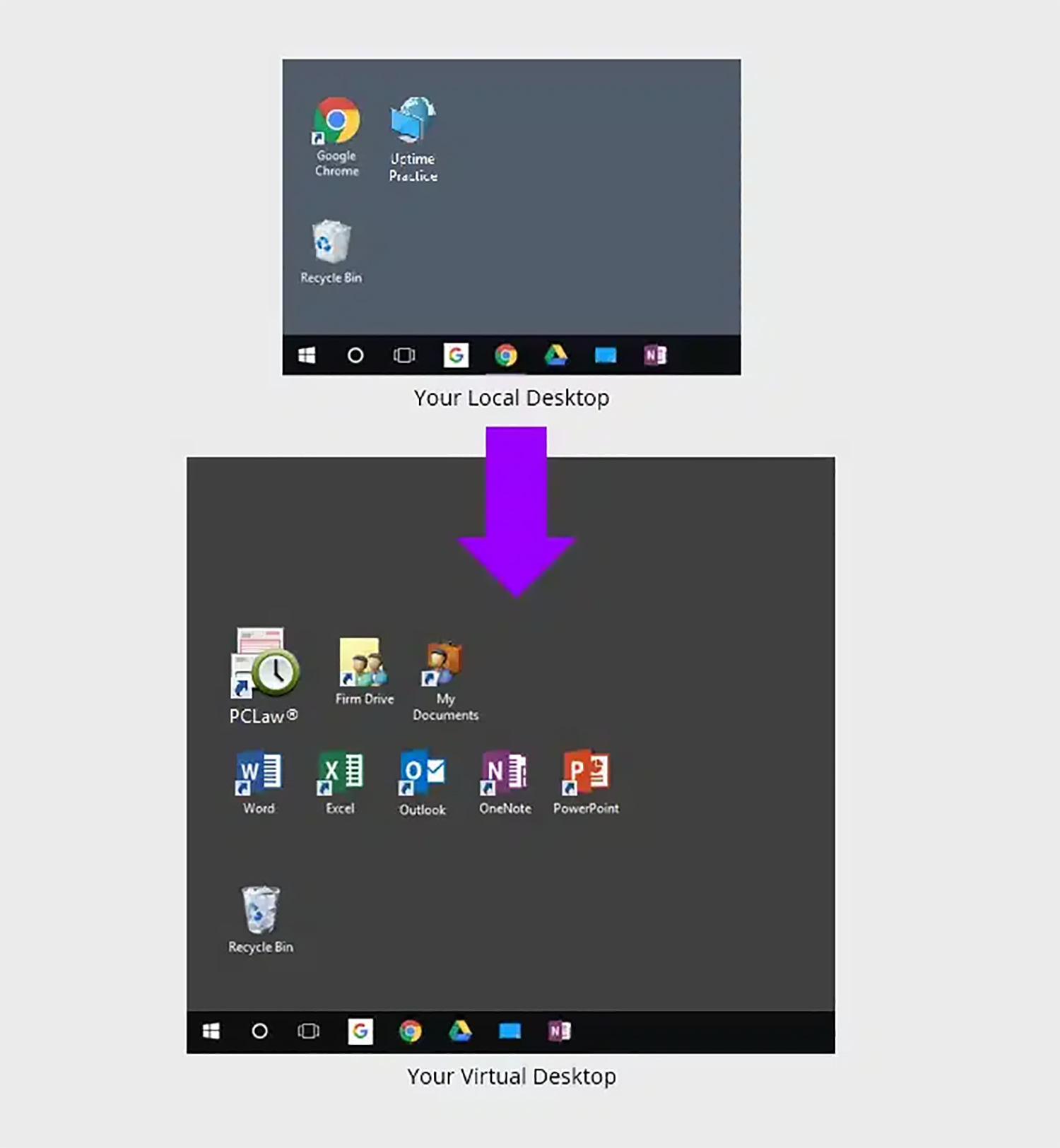
When you (or anyone in your team) logs into your Virtual Desktop, you’ll have access to all of your law firm’s software, documents, and data, including:
This gives your entire firm access to Worldox (and all of your applications, documents, and data) from anywhere, on any device.
Virtual Desktops also mean that you no longer have to install, update, and maintain each of your applications on every computer within your firm. Instead, your Cloud Service Provider simply keeps all software updated for you.
Virtual Desktops for Law Firms:
How They Work, and Why Your Law Firm Should Probably Use Them.
Should My Law Firm Use Virtual Desktops?
Virtual Desktops bring many advantages to law firms. Specifically, Virtual Desktops are likely the best technology route in any of the following scenarios.
We’ll cover selecting the right Virtual Desktop provider and doing your due diligence shortly.
Virtual Desktops Demonstrated
For an example of working in a Virtual Desktop, watch our demonstration of Uptime Cloud (formerly Uptime Practice).
Migration: How to Move Worldox to the Cloud
Now that we understand how Worldox in the Cloud works, the benefits, and the functions, we’ll walk through how to move Worldox to the Cloud.
This process is typically administered by your chosen Cloud Service Provider, but could be done via a combination of IT consultants, software consultants, and cloud hosting providers.
Worldox Cloud vs. Private Cloud
As we described earlier, Worldox has a “Cloud Edition” of its software. This is misleading, however, as Worldox Cloud is not a web-based or different version of their software, but rather a different deployment.
It is Worldox’s own cloud offering, and they will host the Worldox software on their servers and allow you to access your Worldox via an RDS connection. This is in contrast to a third-party Private Cloud, where you can host and access multiple applications (Worldox plus your other legal software).
When Worldox Cloud is a Good Fit
Worldox’s own cloud offering may be a good fit for your firm if all of your other systems (case management, billing, accounting) are already in the Cloud, and you only need Worldox moved to the cloud (nothing more).
When Private Cloud is a Good Fit
If your firm needs to move Worldox and other software to the cloud in much the same way. For instance, if a firm is looking to move Worldox to the cloud as well as Practice Management, Billing, and/or Accounting software, we recommend finding one Private Cloud platform that can host all of your software in one place. This avoids a disjointed set of systems with multiple logins and platforms.
Steps to Move Worldox to the Cloud
Step 1: Onboarding Project Manager
Your Worldox cloud migration should begin the same as any well-managed project: with a single point of contact.
Your project manager (at Uptime Legal, we call this person the Onboarding Manager) should begin by clearly setting expectations and clearly communicating the next steps, removing any uncertainty as to the path that lies ahead. Your Onboarding Manager should define specific timelines, expectations, and what is needed from you.
Step 2: Discover
While a good cloud service provider will have a well-defined and documented process for onboarding, the process is never cookie-cutter, and no two law firms are alike. A good Worldox cloud migration process should begin with deep discovery and assessment of the firm’s current environment, including:
Step 3: Build
Next, your Worldox hosting provider will begin building your private cloud environment. A good provider will have a well-developed process and can build your private cloud quickly. The Onboarding Manager and engineering team will install your software, provision your email accounts, and generally build the “shell” of your complete IT platform. This process includes:
Step 4: Go-Live
Next, your Worldox cloud provider will begin the process of collecting your data from current locations. Each element of your firm’s technology will be moved over, component by component. This cutover process includes:
The physical transfer should be seamless, and all datashould be transferred securely to the new cloud platform. The Onboarding Manager and his team should thoroughly test every application (once data has been imported), and test computers and peripherals.
The Worldox hosting provider should be very flexible in scheduling the cutover, including executing it over an evening or weekend, so that the entire cutover process takes no more than a day and results in little or no user downtime.
Step 5: Training & Ongoing Support
A good Worldox hosting provider knows that first impressions matter.
The key to employee adoption is a reliable, easy-to-use system from Day One. Your cloud provider should have a comprehensive plan for training your entire staff and provide an extra layer of hand-holding as necessary. The Onboarding Manager, who “owns” the migration, should be there for you on the front lines: helping with training and tying up loose ends.
This well-managed, highly operationalized process shouldn’t end with the migration. A good provider of Worldox cloud hosting will have systems for both “on-demand” support, as well as account management: a process to make certain that, beyond the day-to-day technical needs, you have a true partner and legal technology advisor.
I can’t stress this enough: A meticulously-managed onboarding will be the difference between a catastrophic failure and glorious success. Everything outlined here is what is required for a seamless, successful transition of Worldox (and your firm) to the cloud.

The Economics of Worldox in the Cloud
Beyond the functional, reliability, security, and mobility benefits of Worldox cloud hosting, there’s also the financial case for moving Worldox to the cloud.
Running Worldox in-house, with an on-premise servers is a deceptively expensive proposition. You have to buy servers. You have to buy ancillary IT infrastructure, like backup systems, battery backups, and more. You have to hire a capable IT consultant to not only set up the server, but also proactively manage and maintain it.
And these costs are always higher in a given year than you think they will be.
To understand the economics of moving Worldox to the cloud, we need to compare a Private Cloud solution to the costs of in-house, on-premise servers and IT.
On-Premise IT
Up-Front Costs
First, analyze all costs incurred in each new server cycle (typically 3 to 5 years). That is: buying and implementing server infrastructure, and usually includes:
I recommend that, for each of these items above, you get pricing and record it in a spreadsheet. Add up the total costs (and make sure you’re not missing anything), and you’ll have a sense of the total up-front cost of another cycle of on-premise IT.
It’s important to note that many of these costs are ultimately driven by the software your law firm uses. How many, and how powerful, servers do you need? Do you need multiple, dedicated servers? Will you need VMware virtualization? This is ultimately determined by the software you use (namely: Practice Management and Document Management software), and the server requirements of those applications.
Worldox, for instance, requires a lot of computing power, and setup/hosting for Worldox requires an expert.
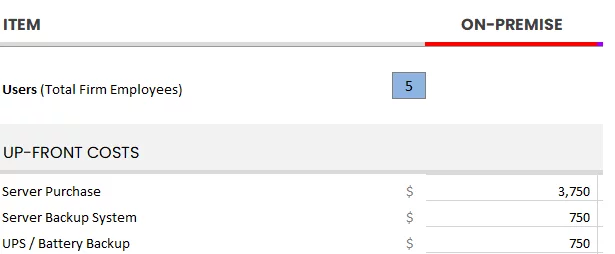
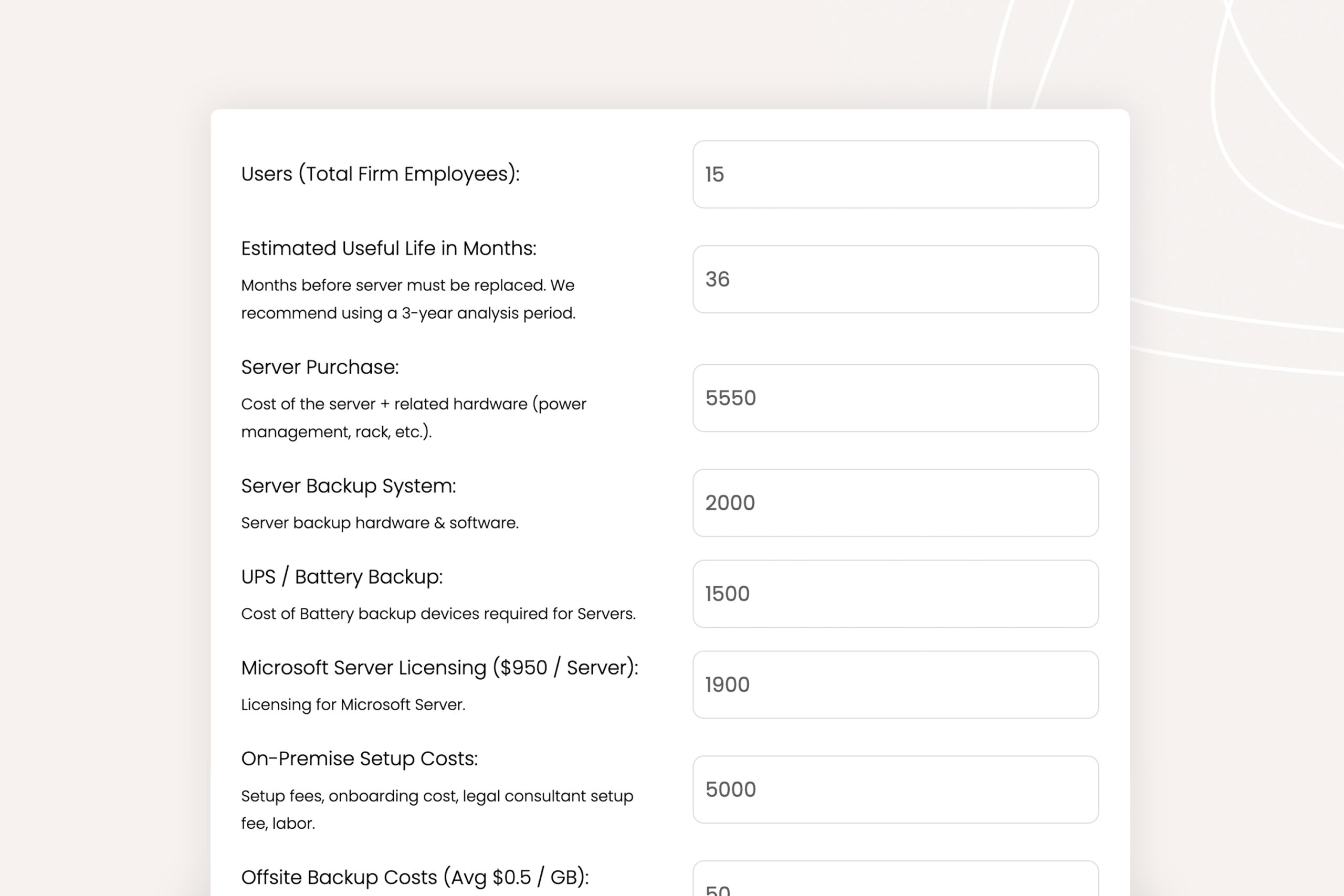
Cloud Cost Comparator:
Use our Cloud Cost Calculator to understand the costs of doing business on-prem and in the cloud.
Ongoing Costs
Next, analyze costs incurred on an ongoing basis. Identify monthly recurring costs, as well as annual costs (renewals, maintenance), and determine your average monthly or annual recurring costs. For most law firms, these often include:
Add up what you do, or will spend, on an ongoing basis. This should include fixed monthly costs (such as a Managed IT Provider contract) as well as sporadic, less predictable costs (such as hourly IT support). For the latter, if you’re unsure of a reasonable budget for this amount, I recommend finding the average over the past two to three years.
Add all of these up and determine your average monthly IT spend.
On-Premise Costs: Unplanned
Finally, we need to identify and budget for some level of unplanned IT expenses. Proactive IT does significantly reduce the chances and impact of unforeseen IT problems, but over enough time they’re likely to occur nonetheless.
These unplanned costs may take the form of:
As you can see, some costs are fixed and predictable, others are wildly unpredictable (but should be budgeted or accounted for in some way)
Finally, add up your up-front costs, monthly recurring costs, and your budget for unplanned/unforeseen costs: This is your Total Cost of Ownership for on-premise IT.
Compare to Private Cloud
Now compare this Total Cost of Ownership to that of a Private Cloud.
We’ve already demonstrated that a Private Cloud is objectively better than in-house IT, in terms of reliability, security, and mobility. But simply comparing the costs of in-house vs. cloud-based IT shows that Private Cloud is also more economical than in-house IT.
Private Cloud costs typically include:
Of note is that (with the right Private Cloud provider) these figures are inclusive of all technology that you would otherwise have to buy and maintain. On-premise IT (as we’ve illustrated above) is fraught with hidden and unpredictable costs.
Fully-managed Private Cloud costs are simple, clear, and predictable.

The Financial Case for Cloud for Law Firms:
The cloud can be substantially more cost-effective than its alternatives. Learn more.
Doing Your Due Diligence & Mitigating Risk
Now that you have a sense of how Worldox in the cloud works and how moving Worldox to the cloud will benefit your law firm, let’s talk about the all-important job of doing your due diligence.
There are a variety of ways your firm could accomplish a transition of Worldox to the cloud. Whatever direction your firm goes, it’s important to do your homework.
In recent years, a problem for law firms has become that more and more companies, from small, local IT shops to generalist (non-legal-focused) cloud server providers, are throwing their hat into the ring and declaring, “Hey, we do Worldox cloud hosting now too!” This is a potential pitfall for law firms. Here’s why.
Running and maintaining Worldox in the cloud isn’t for amateurs.
Hosting Worldox, in particular, requires special configuration and deep software expertise. How to properly engage in due diligence when selecting a Private Cloud provider for your law firm is a subject unto itself, but here are a few key areas to review when evaluating potential hosting companies.
Once you’ve developed a short list of potential Worldox hosting providers, do your homework on each company. We recommend:
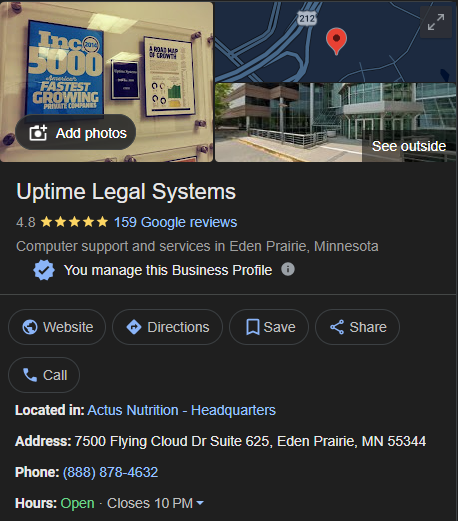
To see the Google reviews for a Private Cloud provider (or any business), if the company is reputable, you can simply perform a Google search for that company, and the reviews will show up in the search results sidebar. For example, here’s ours:
Frequently Asked Questions

Uptime Legal’s Technology Solutions
Cloud, software, IT, and document management built for today’s law firms.