Table of Contents
The call started the way a privileged call should. You told everyone up front there’d be no recording. A day later, an AI summary of the whole conversation showed up in someone’s inbox, courtesy of a notetaker bot nobody on your side invited.
Bots like that usually ride in on another attendee’s calendar and join the call as a participant. You can remove an AI notetaker from Zoom or Teams once it appears, but it’s easier to keep it out.
That means account settings in Microsoft Teams and Zoom, lobby and admit habits, and a plan for when a bot joins anyway. They belong with the rest of your law firm cybersecurity controls.
Whether that recording was allowed, and what you owe the client now, depends on your state, so we’ll give you the questions to bring your counsel. The settings are our side of it: we configure Teams and Zoom for firms without in-house IT.
How Does an Uninvited AI Notetaker Get into a Client Meeting?
Most uninvited AI notetakers get into a client meeting through another attendee’s calendar: the attendee connected a tool like Otter, Read.ai, or Fireflies, and it joins meetings on that calendar automatically. Unless a waiting room, a lobby, or Teams’ bot detection holds it back, nobody on your side has to click anything for that to happen.
Before you change any settings, it helps to know how the bot got in and where the recording goes afterward.
Why Is Otter.ai (or Read.ai, or Fireflies) Joining My Meetings?
The bot is joining because someone on the invite connected the tool to their calendar and left auto-join turned on, so it treats your meeting like any other event it’s allowed to attend.
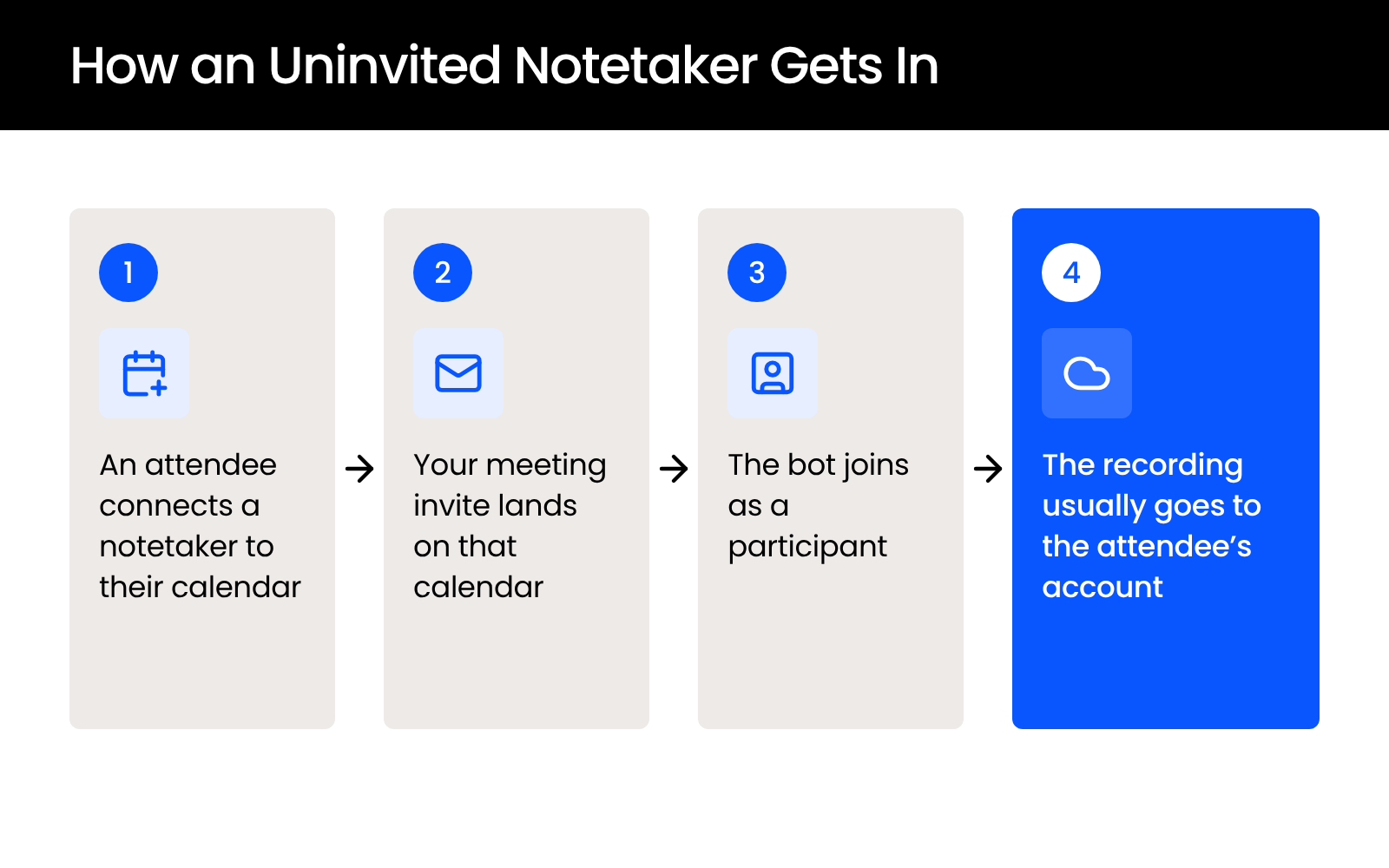
That someone is often outside your firm. It might be opposing counsel’s paralegal, a client’s in-house team, or an expert who uses a notetaker for every call and forgot it was on. On your side, it shows up in the participant list like any other attendee, unless Teams’ bot detection flags it in the lobby.
Where the Recording Goes Once the Bot Leaves
The audio and transcript typically land in the vendor account of whoever brought the bot, outside your firm’s systems. Your firm has no admin access to that copy, no say over how long it’s kept, and no way to delete it yourself.
Some tools, including Read.ai, also send a summary to everyone on the invite after the call. That recap is often how firms learn a bot was there at all.
That’s the confidentiality problem in plain terms. A third party’s software vendor now holds a copy of a client conversation, and the client didn’t agree to it.
Business clients want to know that the privileged information you hold for them is protected to standards like their own. That expectation is strictest in IP and patent work for large pharmaceutical companies and asset managers, and it’s tight in insurance defense too.

Is It Legal for Someone to Record Your Meeting with an AI Notetaker?
Whether an AI notetaker could lawfully record your meeting depends on which state’s recording-consent rules apply to the call, and that’s a question for your own counsel. The same goes for what, if anything, your firm owes the client afterward.
This article stops at the questions because the answers turn on facts only your counsel can weigh.
Why the Answer Depends on Your State
Some states require consent from one party to a recording, and others require consent from everyone on the call. When participants join from different states, which rule applies isn’t always obvious.
Questions to Ask Your Own Counsel
Bring your counsel specific questions so the conversation produces a decision rather than a general warning. Start with these:
The rest of this article covers what your IT settings can handle today.
How Do You Stop AI Notetakers at the Account Level?
You stop most AI notetakers at the account level, in the Microsoft Teams, Microsoft Entra ID, and Zoom admin settings, before any individual meeting starts. These settings apply to every meeting your firm hosts, so nobody has to remember them call by call.
Law firms don’t have a management layer whose job is systems, so these settings usually fall to an office manager who’s already covering HR, accounting, payroll, and vendors.
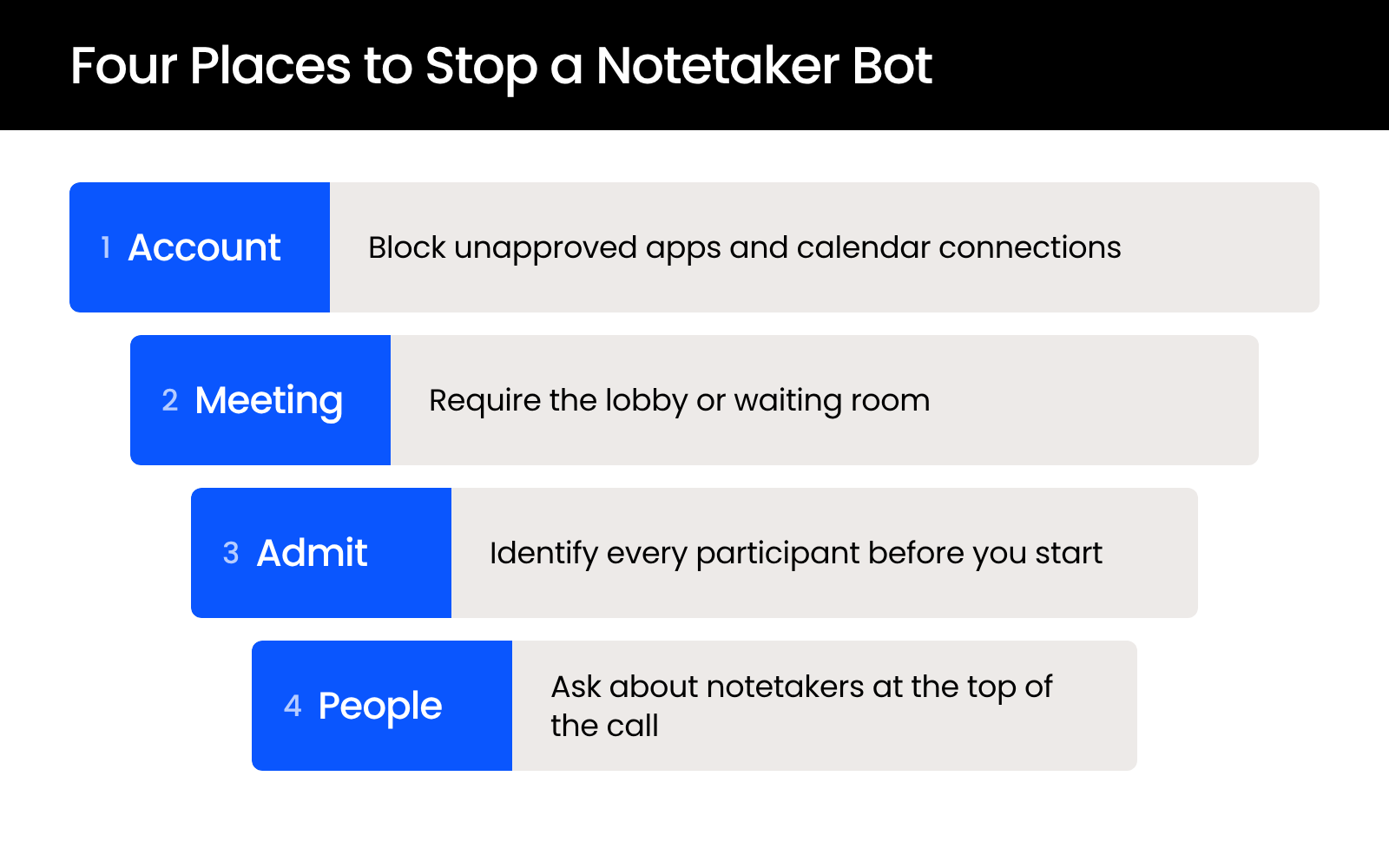
Here are the main controls on each platform.
Microsoft 365 and Teams Settings That Keep Bots Out
In Microsoft 365, the settings that matter most are app permissions in the Teams admin center, the lobby rules in your meeting policies, and external bot detection.
Try the lobby changes on internal meetings first, so admitting outside guests feels routine before a client runs into it.
Zoom Settings That Keep Bots Out
In Zoom, the controls that stop most bots are the waiting room, authenticated joining, recording permissions, and app pre-approval, all locked at the account level so individual hosts can’t turn them off.
Once they’re locked, a host who’s running late can’t switch them off for one meeting.
Block Notetaker Apps from Your Firm’s Calendars
Restricting user consent for third-party apps in Microsoft Entra ID stops anyone at your firm from connecting a notetaker to a firm calendar or mailbox without admin approval. That closes the calendar route for meetings your own people host.
Pair it with the admin consent workflow, so staff can request a tool and someone reviews it. Firms on Google Workspace have a similar control over which third-party apps can access Google accounts.
How Do You Control Who Gets Admitted to a Client Meeting?
You control who gets into a client meeting by holding every outside participant in the lobby or waiting room and admitting them one at a time, by name. Account settings do most of the work, and the admit decision is the access control that catches what they miss.
Use the Waiting Room or Lobby for Every Client Call
Keep the waiting room or lobby on by default for client meetings, because “admit all” lets a bot in along with everyone else. It’s tempting when the call is running late and a row of names is waiting, and that’s when bots get through.
Admitting people one at a time takes seconds, and the host knows who’s on the call before anything privileged is said.
How to Spot a Bot in the Participant List
A notetaker bot usually looks different from a person in the participant list, even when it’s named after one. Watch for these signs:
If nobody can identify a participant, don’t admit them, or remove them before the conversation starts.
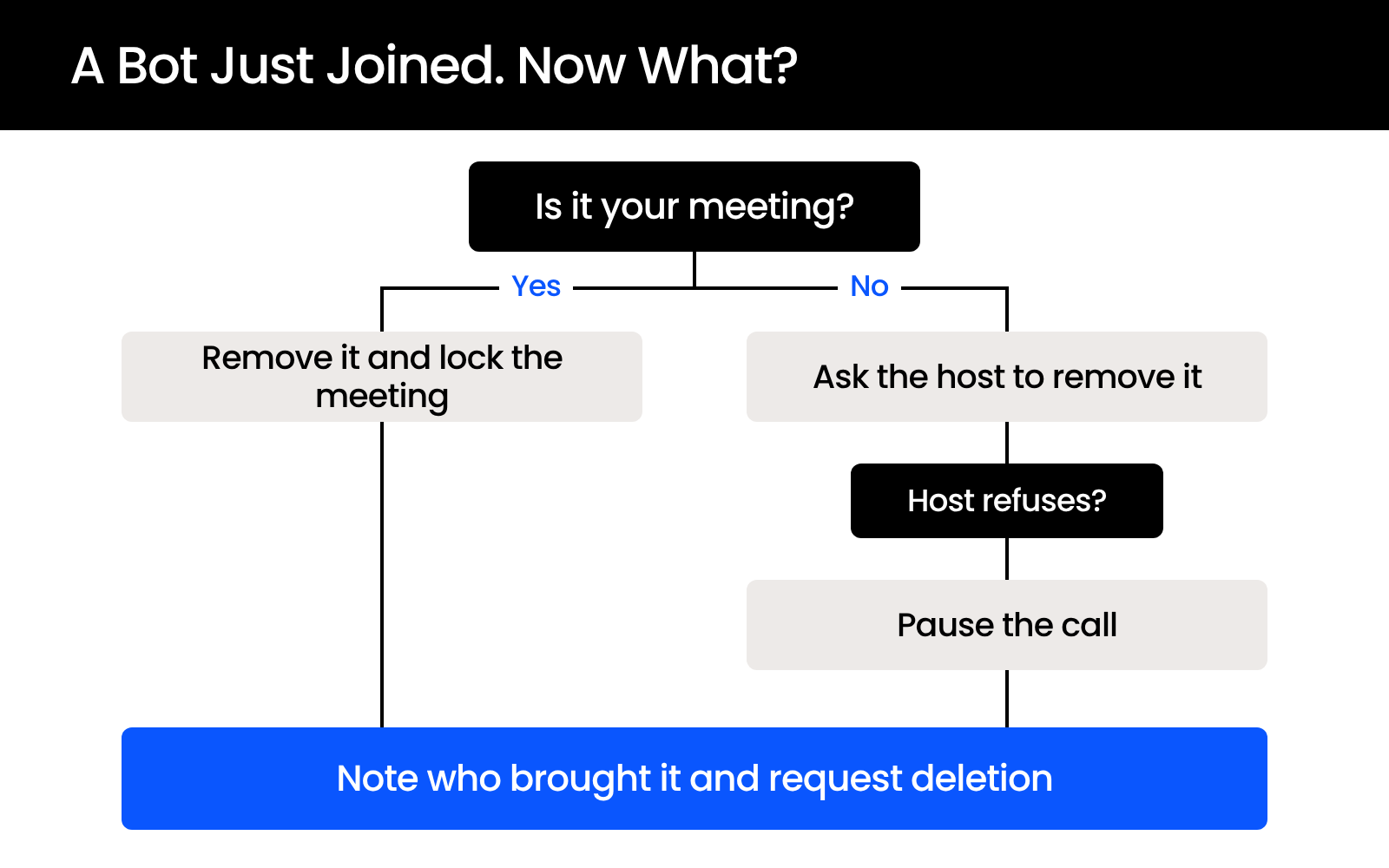
To remove a bot in Zoom, the host clicks Host tools, then Remove participant. Removed participants can’t rejoin unless your settings allow it, and Lock meeting, in the same menu, stops anyone new from joining. In Teams, the organizer selects People, hovers over the bot’s name, then selects More options and Remove from meeting.
What Should You Say When a Notetaker Shows Up Anyway?
When a notetaker shows up anyway, say so out loud, ask whoever brought it to turn it off, and don’t discuss anything sensitive until it’s gone. What comes next depends on whether your firm is hosting.
What to Say at the Top of a Sensitive Call
A short script at the start of the call asks everyone to name any notetaker before the conversation starts. The host can use something like this:
“Before we start, can everyone confirm who’s on the line? And is anyone running an AI notetaker or recording tool? If so, please turn it off for this call.”
Ask it on every call where privileged information will come up. Asking every time makes it routine rather than an accusation.
When It’s Not Your Meeting
If opposing counsel or a client is hosting, your firm’s settings don’t apply, so ask the host to remove the bot and be willing to pause until they do.
If the host won’t, you don’t have to continue. Pausing the call, or moving the sensitive part to a meeting your firm hosts, is a reasonable response.
What to Do If a Bot Already Recorded the Call
If a bot already recorded the call, your next steps are about documenting what happened and limiting the copy that exists:
- 1
Remove the bot from the meeting as soon as you spot it.
- 2
Write down what happened: the date, who was on the call, what was discussed while the bot was present, and who brought it.
- 3
Ask the person who brought the bot, in writing, to delete the recording and transcript and confirm that they did.
- 4
Take the question of whether and how to tell the client to your counsel.
Your firm can request deletion, but it can’t force the other party or their vendor to delete anything. A written request and a written confirmation are the best record you’ll have.
What If the Notetaker Belongs to Your Own Staff?
The same problem exists when someone at your firm runs a notetaker on a client call, often because nobody has set a rule and partners disagree about AI. An associate tries a tool, it saves time, and it becomes part of how client meetings run without anyone deciding it should.
The fix starts with a written rule on which tools are approved and when they’re allowed. The vendor terms, settings, and privilege questions that decide which tools belong on that list are covered in our guide to AI meeting transcription for law firms.
What Should a Law Firm’s Meeting Recording Policy Say?
A law firm’s meeting recording policy should answer five questions: who can record, with which tools, what gets said at the start of a client call, how bots get handled, and who keeps the settings current. One page is usually enough.
Cover these points:
Firms skip that last point because nobody owns it by default. If no one at your firm has the time, a managed IT provider that handles cybersecurity for law firms can set these controls up and keep them current.
Close the Doors Before the Next Client Call
Most uninvited notetakers get in through settings nobody changed: an open lobby, an app anyone could connect to a calendar, a quick “admit all.” Close those, ask the top-of-call question every time, and write down who owns the settings.
When a bot gets through anyway, you’ll know how to handle it in the moment and which questions belong with your counsel. The settings are already in your admin console.
WHAT’S NEXT
FAQ

Uptime Legal’s Technology Solutions
Cloud, software, IT, and document management built for today’s law firms.