Table of Contents
Your firm turned on Microsoft Copilot expecting it to feel like adding a paralegal who never sleeps. A few weeks in, that’s not what happened. Copilot drafts email replies fine, but ask it to summarize a matter and it comes back blank, because the documents that matter never made it into its view.
That’s not a fluke. Copilot sees what lives inside Microsoft 365 by default: Outlook, Word, Excel, Teams, and whatever else it’s connected to inside your tenant.
It has no visibility into your DMS, your practice management system, or the matter-level structure your legal work runs on, not unless someone has specifically connected it. That gap is why the same rollout can produce completely different opinions inside one firm.
The gap is fixable. Once you know exactly where Copilot’s reach ends, you can tell whether your rollout needs reconfiguring or whether it’s genuinely the wrong tool for how your firm works.
We’ve walked enough firms through this exact gap to know it’s rarely a reason to abandon Copilot outright.
Why Your Firm’s Copilot Rollout Stalled
Most stalled Copilot rollouts trace back to one root cause: the tool is working exactly as designed, and nobody scoped it to where your firm’s real friction lives.
Someone on your team asks Copilot to pull together everything on a client matter. It comes back empty, or worse, it comes back confident and wrong. That’s the moment most firms decide Copilot doesn’t work.
But the tool never had access to what it was asked to find. Copilot was turned on, given a license, and left to figure out your firm’s workflow on its own. Nobody told it where your actual case files live, because nobody scoped that conversation in the first place.
That’s also why opinions about Copilot inside your firm can be all over the map. One attorney loves it for drafting emails. Another tried it once for matter research, got nothing useful, and wrote it off completely.
Both experiences are accurate. They’re just describing different parts of the same tool, used two very different ways.
Before you can fix that, or decide Copilot isn’t worth the trouble, it helps to know exactly where its reach starts and stops.

What Copilot Actually Sees Inside Your Firm’s Microsoft 365
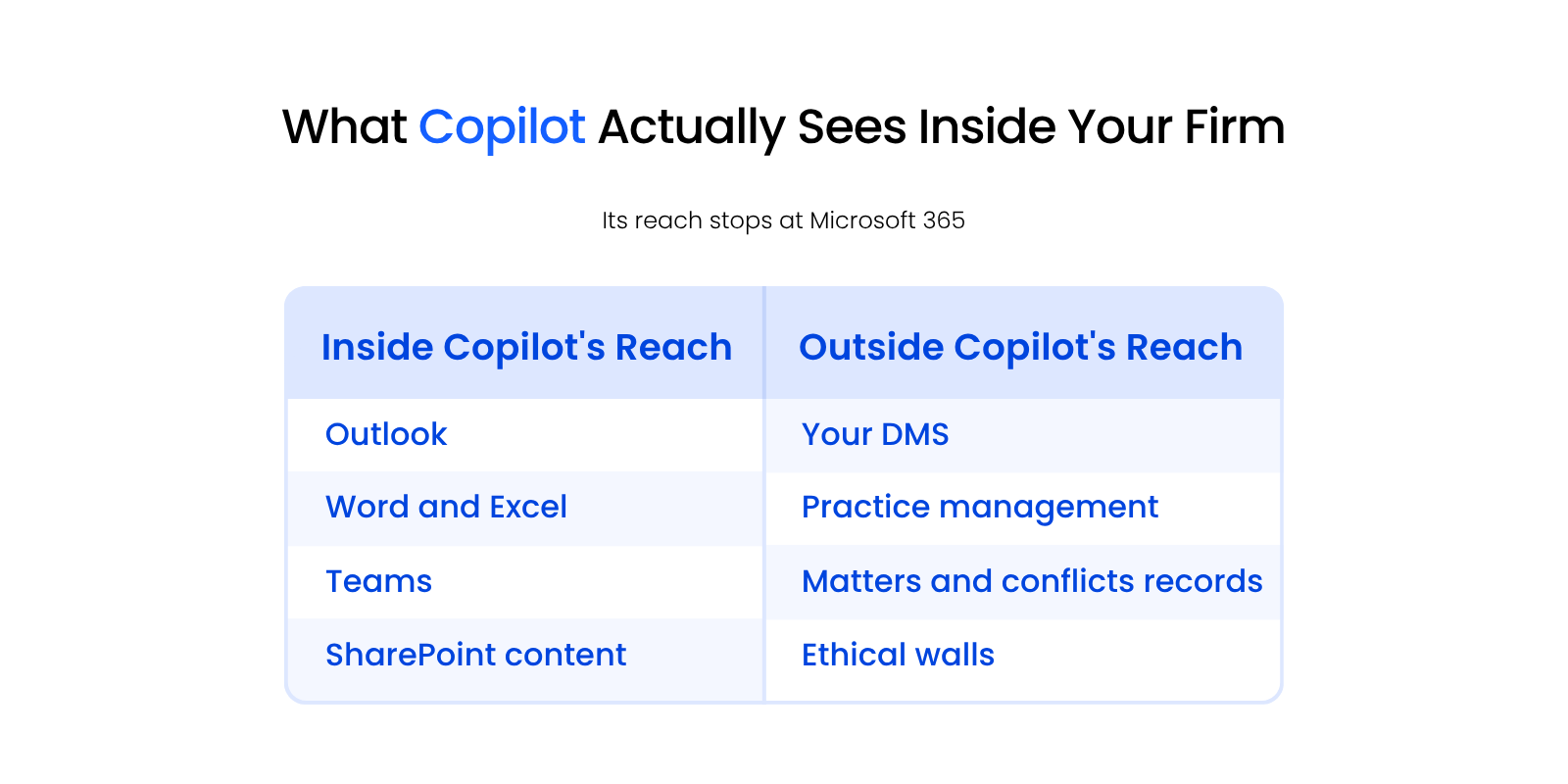
Copilot’s default visibility stops at the edge of Microsoft 365: it reaches Outlook, Word, Excel, Teams, SharePoint content, and whatever else is connected inside your tenant, but nothing past that boundary unless someone extends it.
That boundary explains almost everything about why Copilot feels inconsistent. The architecture works exactly as designed. Understanding exactly where that line sits is the difference between using Copilot well and being surprised by what it can’t do.
What Sits Inside Copilot’s Native Reach
Inside Microsoft 365, Copilot can read and reason across your Outlook mail, Word and Excel files, Teams conversations, SharePoint content, and any other data source connected inside your tenant.
That’s a real, useful footprint. It can summarize a long email thread, draft a first-pass response, pull highlights from a Teams meeting, or reference a Word document you have open.
It won’t dig through years of buried email the way a dedicated search tool might, but for day-to-day M365 content, it performs reliably. If the information lives natively in M365, Copilot has a path to it.
What Sits Outside It: Your DMS and Matter Data
Outside Microsoft 365, Copilot has no default visibility into your DMS, your practice management system, or the matter-level records that organize your actual legal work.
That’s where most of your firm’s institutional knowledge actually lives: matter files, client history, document versions tied to a specific case, conflicts records, and billing detail. None of it’s native to M365, so none of it’s visible to Copilot unless your firm has set up a connector to bring it in.
That scope boundary is exactly why the next section splits so clearly between what Copilot does well and where it runs out of road.
Where Copilot Genuinely Helps at a Law Firm
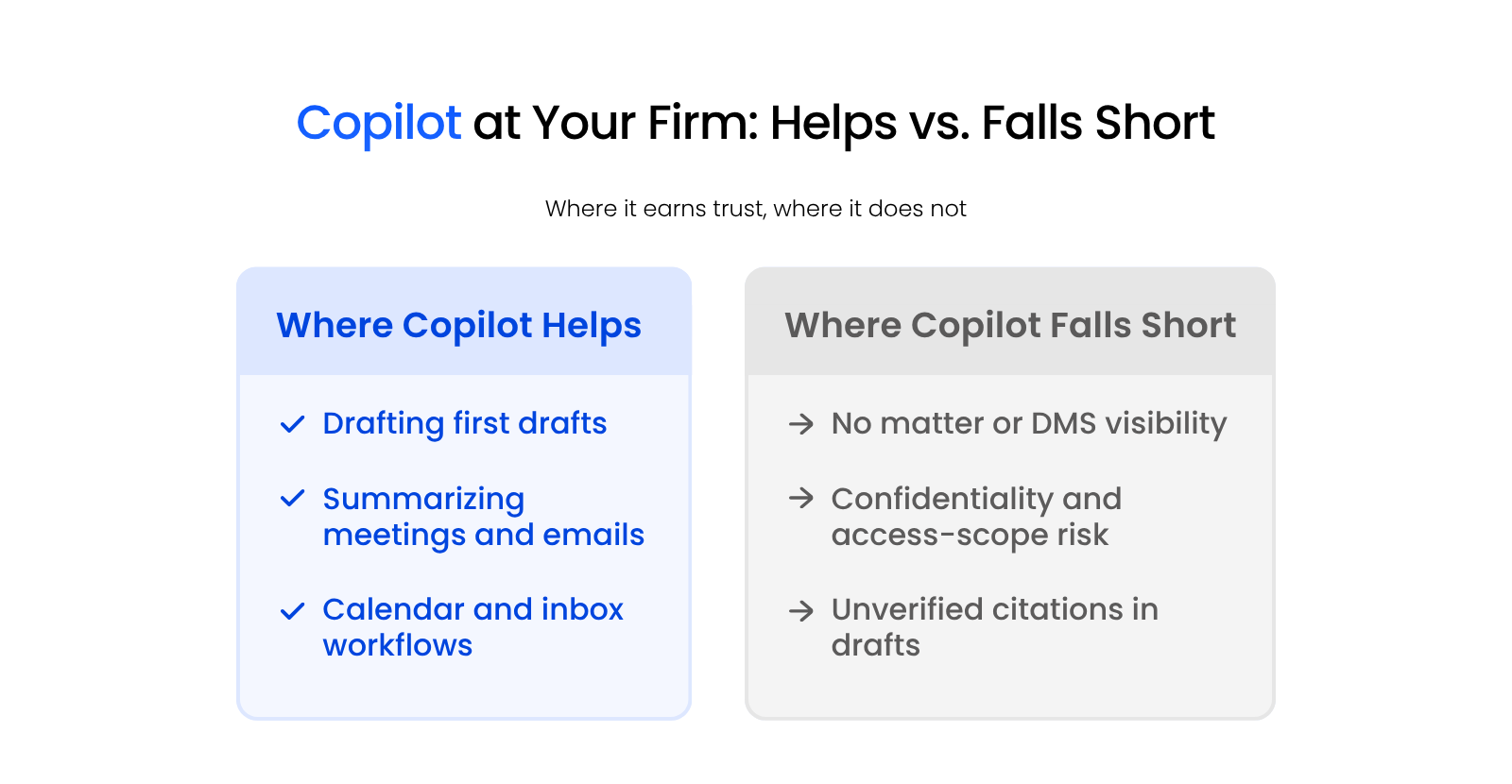
Copilot earns its keep on the work that stays inside Microsoft 365 for law firms: drafting, summarizing, and inbox and calendar management.
None of that’s a small thing. Those are the tasks that eat hours every week without ever touching a matter file, and Copilot handles a meaningful share of them well.
Drafting and Summarizing Routine Work
Copilot drafts routine correspondence, memos, and first-pass summaries of emails and meetings faster than doing it by hand.
Ask it to summarize a long email thread before a client call, and you get the gist in seconds instead of scrolling through twenty replies. Ask it to draft a first-pass response to a routine request, and you get something to edit instead of a blank page. It removes the busywork in front of a task, not the legal judgment behind it.
Calendar and Inbox Workflows That Save Real Time
Copilot’s calendar and inbox suggestions save real time on the scheduling and triage work that piles up around every matter.
It can flag which emails need a response today, suggest meeting times that actually work across a full calendar, and pull together a quick agenda from a thread of back-and-forth messages. None of it’s glamorous, but it adds up over a full week. That’s the ceiling of what Copilot does on its own, and it’s a real one worth using well.
Where Copilot Falls Short and Why
Copilot’s failures at your firm cluster around three specific gaps: no default matter or DMS visibility, confidentiality and access-scoping risk, and unverified citations in its drafts.
Each of these traces directly back to the same boundary covered above. None of them means Copilot is broken; they mean it was asked to do something outside its native reach.
No Visibility Into Matters or Your DMS
By default, Copilot can’t see your matters or your DMS, so it can’t summarize, search, or reason across the documents that actually define a case.
Ask it what happened in a specific matter, and it has nothing to work with unless someone happened to email the relevant document through Outlook. That’s the single biggest source of the “Copilot doesn’t work” complaint, and it comes down to visibility, not capability.
Institutional knowledge at your firm rarely lives in one place. It’s spread across the file server, the DMS, Outlook, and the people who’ve worked a matter long enough to remember details no system captured.
Even a purpose-built legal document system is still working toward matter-level AI context, not just document-level. Closing that gap is hard even for tools built specifically for legal work, and Copilot, with no DMS visibility at all, starts from a harder position still.
Confidentiality and Access-Scoping Risk
Copilot inherits whatever access and sharing permissions already exist in your Microsoft 365 tenant. That’s confirmed in Microsoft’s own security documentation: a poorly scoped rollout can still surface information across an ethical wall it was never supposed to cross, a risk ABA Formal Opinion 512 names directly.
If access control at your firm is broader than it should be, Copilot will summarize or surface whatever that permission allows, with no built-in awareness of ethical walls or conflicts. ABA Model Rule 1.6 puts the confidentiality obligation on your firm, not on Microsoft, which makes a permissions review part of any real Copilot rollout, not an optional step.
Unverified Citations and the Duty of Competence
Copilot can generate citations and case references that sound plausible and aren’t real, which puts the duty of competence on whoever reviews its output before it reaches a client or the court.
This risk isn’t unique to Copilot. Every generative AI tool carries some version of it. The duty of competence in ABA Model Rule 1.1 means a lawyer using any AI tool, Copilot included, stays responsible for verifying what it produces before it goes anywhere near a filing.
How to Tell If Copilot Can Still Work for Your Firm
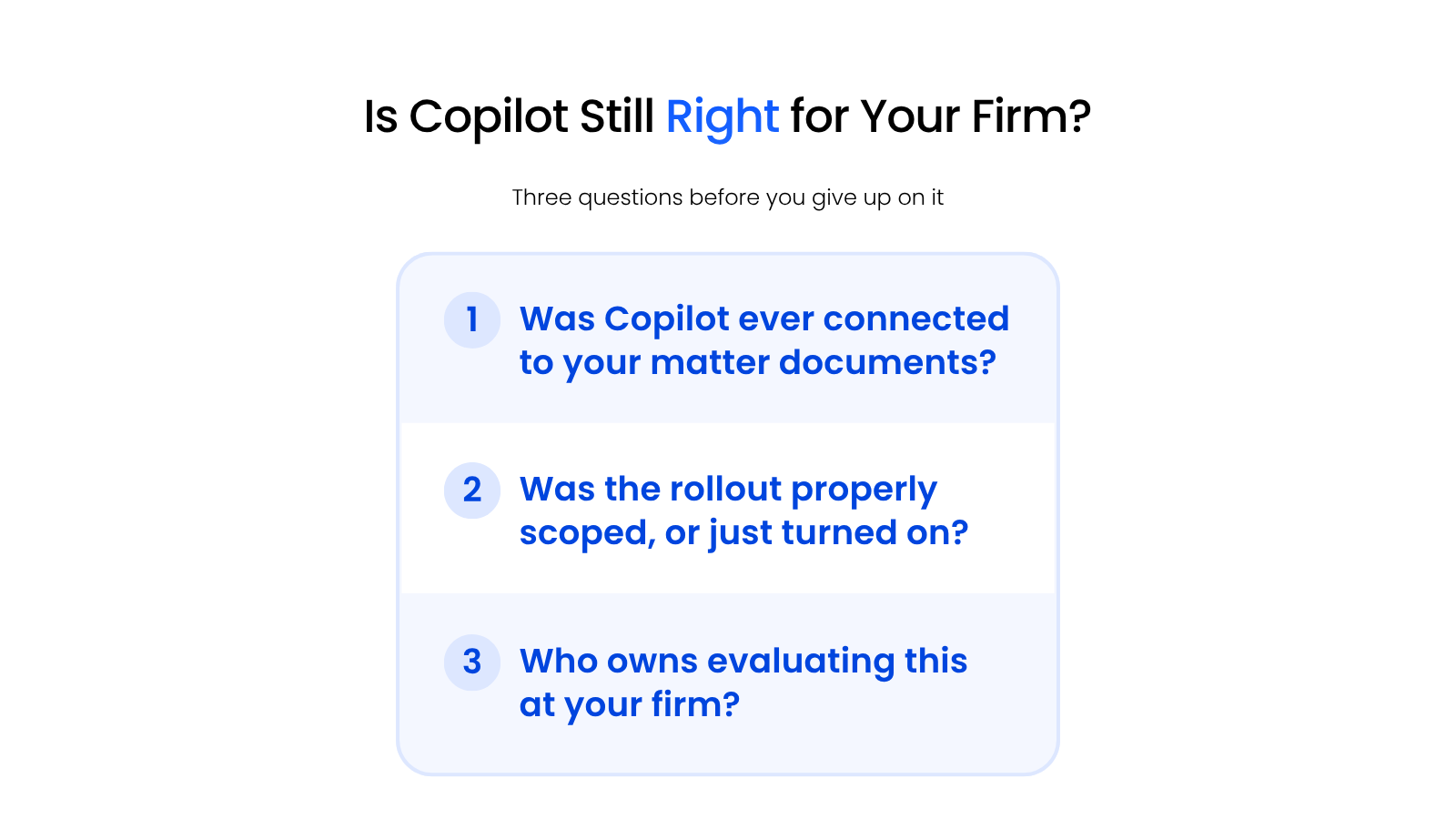
Three checks separate a fixable Copilot rollout from a genuine dead end: whether it was ever connected to your matter documents, whether the rollout was properly scoped, and who owns evaluating it.
Run through these before you decide Copilot isn’t worth keeping.
Was Copilot Ever Connected to Your Matter Documents?
If Copilot was never connected to anything beyond your inbox and file system, the tool hasn’t actually been tested against the work your firm complains it can’t do.
A license switched on with default settings only ever sees what’s native to Microsoft 365. If nobody connected it to anything else, judging it on matter-level work only tests what it was never given access to in the first place.
Was the Rollout Properly Scoped, or Just Turned On?
A rollout that’s just a license switched on, with no conversation about what it should and shouldn’t touch, isn’t a real evaluation of the tool.
A real rollout starts with a scoping conversation: what Copilot should have access to, what should stay walled off, and who’s responsible for reviewing what it produces before it goes anywhere near client work. Skip that conversation, and you’re testing a default configuration, not the tool itself.
Who Owns Evaluating This at Your Firm?
Without one person or team responsible for evaluating Copilot’s fit, different people form different opinions from different, uncoordinated experiences with it.
Put someone in charge of the evaluation, give them a real scoping conversation to run, and you get an actual answer instead of a dozen different anecdotes.
Run those three checks, and the answer usually points the same direction: pairing Copilot with something that gives it matter-level visibility, rather than replacing it outright.
If your firm runs iManage or NetDocuments, both platforms now offer a Copilot connector built for exactly this gap, worth checking before assuming Copilot and your DMS can’t talk to each other at all. A typical firm’s AI stack will likely combine a generalist tool like Copilot for broad tasks with industry-specific tooling built for matter-centric data, because a generalist tool won’t have that context on its own.
Closing the Gap Between Copilot and Your Firm’s Actual Workflow
Closing this gap doesn’t usually mean replacing Copilot; it means connecting it to a data source that gives it the matter-level visibility it doesn’t have by default. For firms on iManage or NetDocuments, that’s a Microsoft-supported connector, not a hypothetical.
For most firms, that starts with an honest look at what your Microsoft 365 environment actually connects to, not just what’s turned on. As part of managed IT for law firms, Uptime Legal maps that gap for firms evaluating tools like Copilot: what it can see, what it can’t, and what a properly scoped rollout would need to close the difference.
That’s a scoping problem you can solve. It takes treating Copilot as a tool that needs configuring for your firm’s actual workflow, not a switch you flip once and forget.
Scope Decides Whether Copilot Works for Your Firm
Copilot’s reputation problem at your firm is really a scoping problem. It does exactly what it was built to do inside Microsoft 365 by default, and it comes up short exactly where matter data, DMS access, and verification responsibility live outside that boundary until someone connects it.
That’s a fixable mismatch, not a verdict on the technology. Before writing Copilot off, check whether it was ever properly scoped to your firm’s actual workflow, whether someone owns that evaluation, and whether the rollout ever touched the work you’re judging it against.
WHAT’S NEXT
Frequently Asked Questions

Uptime Legal’s Technology Solutions
Cloud, software, IT, and document management built for today’s law firms.