Table of Contents
Your firm already trusts Tabs3 and PracticeMaster for billing, trust accounting, and matter management. The server closet running it all is a different story: expensive to maintain, slow to scale, and one failure from a very bad week.
Hosting Tabs3 in the cloud through a private cloud provider keeps the software as your team knows it, minus the hardware. That’s different from Tabs3’s own native Tabs3 Cloud product, and worth keeping straight before you go further.
If you’re still comparing Tabs3 against other law practice management software, this guide picks up after that decision: you’ve chosen the platform, and you’re now weighing how to run it, especially if a clunky VDI setup is the only thing standing between your team and secure remote access.
Here’s what changes: how your team accesses Tabs3 day-to-day, what migration looks like, and what it costs each month once the guesswork is gone.
Who This Guide Is For
This guide is written for the people who make the hosting call: managing partners and owners weighing the investment, firm administrators and operations staff who’ll live with the day-to-day result, internal IT leaders comparing this against what they already run, and outside IT consultants or MSPs evaluating the move on a client’s behalf.
If that’s you, and you’re deciding whether to move an existing Tabs3 or PracticeMaster installation into a hosted private cloud, this guide is written for exactly that decision.
Introduction to Tabs3 and PracticeMaster
Tabs3 handles the financial side of running a law practice: timekeeping, billing, trust accounting, accounts payable, and general ledger. PracticeMaster covers the practice side: matter management, calendaring, workflows, and basic document tools.
Both run as desktop and server applications, and most firms that adopt one adopt both. If you’re still deciding whether the platform itself is the right fit, our Tabs3 review covers the full feature set and pricing.
Neither program handles document management on its own. Pairing either with LexWorkplace adds the search, OCR, and email-management layer that Tabs3 and PracticeMaster don’t provide natively: a combination Uptime Legal recommends for firms that want a complete practice stack without switching practice management platforms or giving up the billing and trust accounting workflows they already know.
Stand-Out Features
A few things set Tabs3 apart from other practice management platforms, and they’re worth understanding before you get to the hosting decision.
Modular and End-to-End Law Practice Software
You can run individual Tabs3 modules or the full end-to-end suite, depending on what your firm actually needs. A firm that only needs billing and trust accounting can start there without paying for modules it won’t use.
A firm that wants matter management, calendaring, and workflow tools alongside billing can run the complete stack from day one, and either path stays on the same underlying platform if your needs grow later.
Network of Authorized Consultants
Tabs3 maintains an established network of authorized consultants who support implementation and ongoing use. That network matters when you need help beyond what your internal team or hosting provider covers, whether that’s a complex configuration question or a workflow only a Tabs3 specialist has seen before.
Document Management Solution
Tabs3 and PracticeMaster don’t include advanced document management, so Uptime Legal recommends pairing either with LexWorkplace.
LexWorkplace adds document profiling and metadata, client and matter organization, folder and tag organization, email-to-matter saving, version management, document and email notes, and automatic integrated OCR: the layer that turns a practice management platform into a full document workflow.
Who Tabs3 Is Good For
Tabs3 is a strong match for firms that want billing, accounting (including trust), and matter management running in one unified, proven stack, rather than stitching together separate tools for each function.
Why Tabs3 Is Better in the Cloud
Once you decide to host Tabs3 in a private cloud, here’s what actually changes for your firm.
The Best of Both Worlds
You keep the software your team already knows: the same screens, the same workflows, the same trust accounting rules. You lose only the hardware that runs it. Nothing about how Tabs3 works changes; what changes is where it lives.
Managing Servers and IT Is a Pain
Running Tabs3 on-premise means owning a SQL Server purchase and implementation, backups and disaster recovery, data security, an IT consultant, routine maintenance, and a server hardware refresh every three to five years. Server failures aren’t rare, and each one comes with a bill and, usually, some downtime attached to it.
Firms that keep their own server often believe that arrangement gives them more control over their data.
Work from Anywhere
A private cloud gives your team the same anywhere access to Tabs3 that an on-premise server can’t provide, whether that’s home, a second office, or a courthouse hallway.
Data Security and Compliance
A reputable private cloud provider secures Tabs3 with encryption in transit and at rest, virus and ransomware protection, multi-factor authentication, redundant data centers, point-in-time recovery, an enterprise firewall, active threat monitoring, and regular patching, running on a dedicated private network and servers for your firm. That’s the same baseline our cybersecurity for law firms guide recommends for any legal software, not just Tabs3. If your firm has a server and an internet connection, you already face internet-borne risk; the question is whether anyone is actively watching for it.
Work with Windows and Macs
Tabs3 itself only runs on Windows. A virtual desktop resolves that: your Mac users get a full Windows session without a compatibility workaround or a second machine.
More Reliability, Less Downtime
Redundant servers, routers, ISPs, and data arrays, plus geo-redundant data centers, multiple backups, point-in-time recovery, routine maintenance, and monitoring around the clock make a private cloud more reliable than a single on-premise server.
Flexible and Scalable
Your Tabs3 capacity scales with your firm. Add a user or a location, and capacity follows, instead of waiting on whatever hardware you bought two years ago to catch up.
More Economical
Cost comparisons between on-premise and private cloud hosting usually come down to total cost of ownership, not the sticker price of either option. The cheapest quote on paper isn’t always the best deal once you weigh what’s actually included against what a cut-rate provider leaves out.
Centralization
Multi-location firms get one central place to run Tabs3 instead of a separate server sitting in every office.
Tabs3 as a Cloud App
Once you’ve decided to host Tabs3 in a private cloud, you still have one more choice to make: publish just the application, or run the full desktop.
Cloudify Tabs3 publishes only the Tabs3 application itself. Your team opens Tabs3 the way they always have, but the program is actually running on a cloud server, streamed to whatever device they’re using. This model fits firms where Tabs3 is the main thing that needs remote access and everything else (email, shared drives, other line-of-business software) already works fine where it is.
Full Private Cloud, or virtual desktop, replaces the entire Windows environment, not just Tabs3. Outlook, shared drives, PracticeMaster, and any other software your firm runs all live in the same virtual desktop. This model fits firms that need more than one application hosted, want a consistent full-desktop experience across every device, or are retiring their on-premise servers entirely rather than just adding remote access to one program.
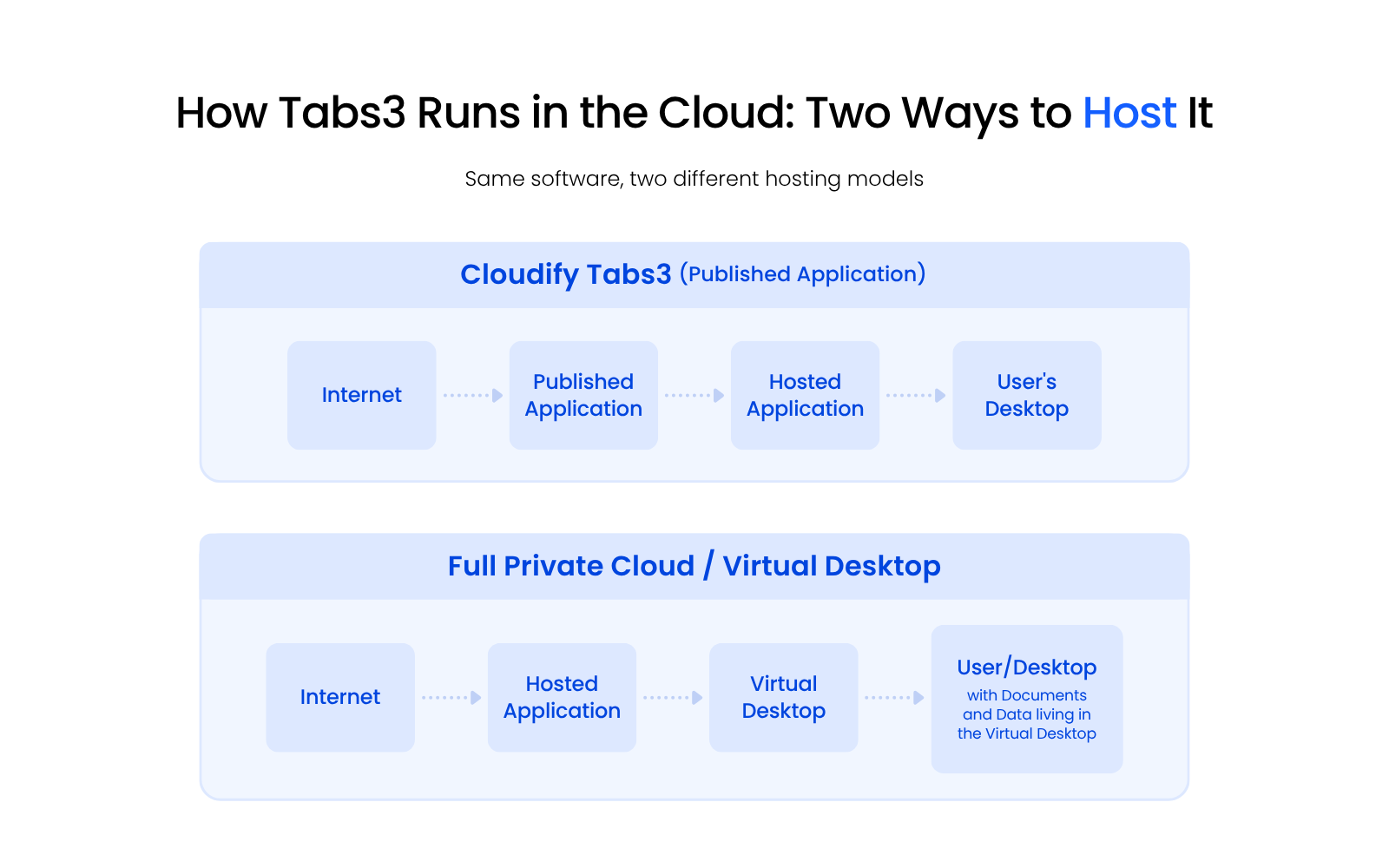
Three signals point toward one model or the other: how many other programs your team needs the same remote access to, how consistent the experience needs to be across devices, and how much of your on-premise footprint you’re actually trying to retire. If Tabs3 is the only program that needs remote access, published-application hosting is usually enough.
If your team needs the same full-desktop experience no matter what device they’re sitting in front of, a virtual desktop delivers that consistency. And if you’re trying to retire a server entirely rather than just add remote access to one program, a full virtual desktop is built for that; publishing a single application can coexist with a server you’re keeping.
It’s worth being precise about what you’re actually choosing between here. This article covers hosting Tabs3 through a private cloud provider like Uptime Legal: infrastructure built and managed specifically for your firm.
That’s different from Tabs3 Cloud, Tabs3’s own native cloud product, and different again from Tabs3 Connect, an older, more limited remote-access feature built into Tabs3 itself. If you’ve heard of Connect and are wondering whether it does the same thing a private cloud hosting provider does, it doesn’t; Connect gives limited remote access to the application, not the hosting, backup, and management model this guide describes.
Tabs3 in a Private Cloud
A private cloud, the same hosting model our cloud solutions for law firms guide covers in depth, is exactly what it sounds like: a hosting environment built for your firm alone, not shared space carved out of someone else’s server.
A private cloud plan from Uptime Legal typically bundles hosting, cloud storage, Tabs3 support and updates, Office 365, SQL Server, Exchange email, and IT help desk into one environment, so you’re not managing separate vendors for each piece.
The “Private” in Private Cloud
“Private” means dedicated virtual servers, a dedicated network (VLAN), Active Directory, and a separate SQL Server database for your firm alone, not a shared, multi-tenant setup where your data sits alongside another firm’s. That distinction is what “private cloud” actually promises, and it’s worth confirming with any provider you’re considering.
Tabs3 in a Virtual Desktop
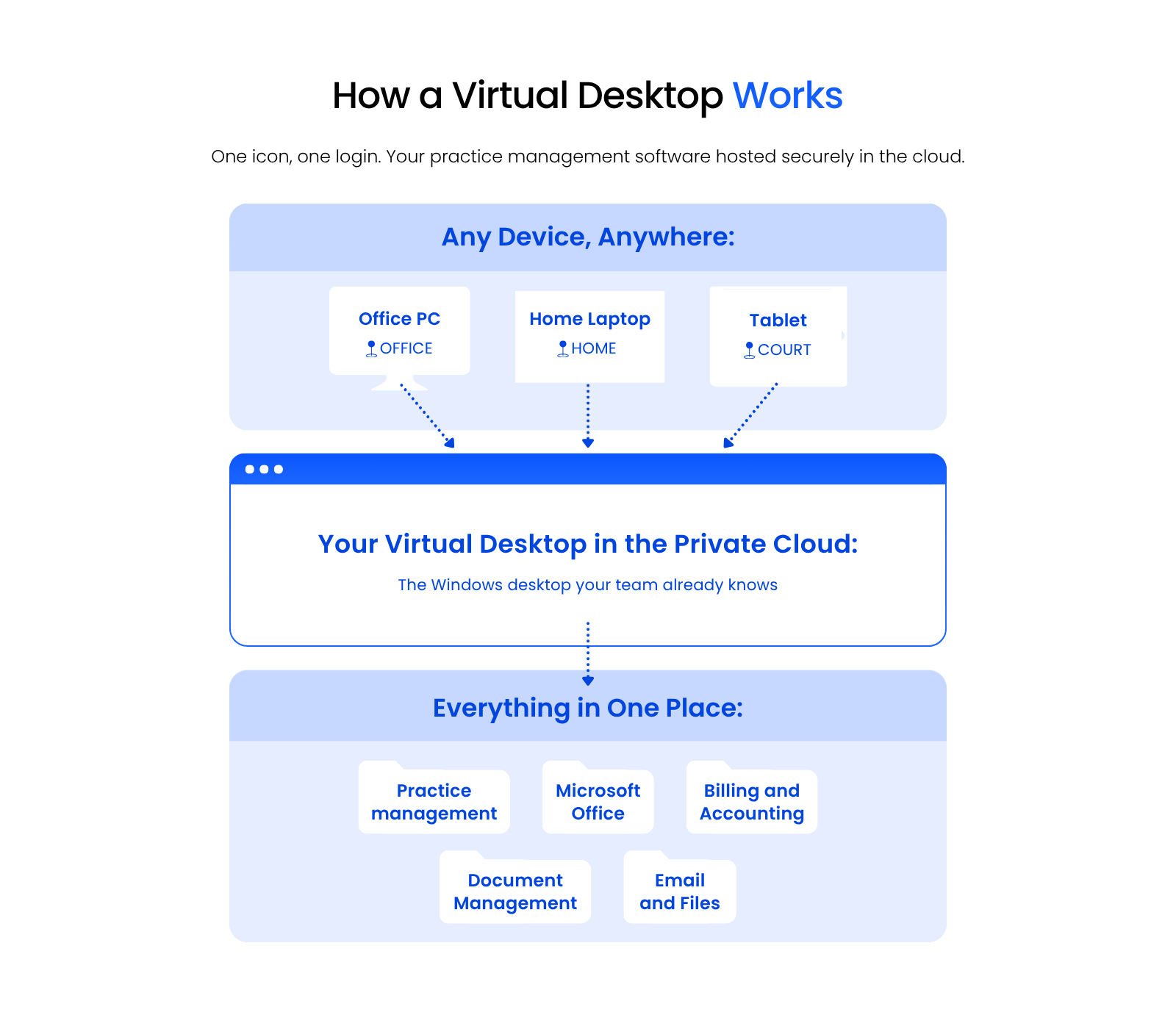
A virtual desktop lets your team run Tabs3 from a Mac, PC, iPad, or browser, with nothing to install or patch locally. Everyone gets centralized management, consistent access to the same data regardless of device, working printers and scanners, multi-monitor support, and backups that happen centrally instead of device by device: one less thing your internal team has to track.
How Virtual Desktops Work
In a virtual desktop, Tabs3 actually runs on a cloud server, not on the device in front of you. Your local device just sends input and displays whatever comes back, over an encrypted session. Large file operations happen inside the data center for performance rather than over your local internet connection, and you get in through a small client application or a browser, plus a single sign-in shortcut you use every time.
Migration: How to Move Tabs3 to the Cloud
Moving Tabs3 to a private cloud follows a defined process, not a leap of faith, and knowing the steps ahead of time makes the whole thing feel a lot less risky.
Onboarding Project Manager
A single project manager becomes your point of contact for the entire migration, setting the timeline and expectations before any actual work starts, so your team knows what to expect and when.
Discovery
Discovery inventories everything the migration needs to account for: your software, your documents and data, your email accounts, any third-party services you rely on, your network devices, and a real test of your internet speed, not just an assumption about what it can handle.
Build
The build phase stands up virtual servers, sets up user profiles and virtual desktops, installs your software, configures the file system and permissions, and tests the environment before anyone touches production data. This is where most of the technical risk gets caught before go-live, not during it.
Go-Live
Go-live migrates your applications and databases, including Tabs3, your file system, your email mailboxes and distribution groups, and utility functions like print servers, DHCP, and DNS. Migrations typically happen in the evening or over a weekend specifically to avoid business-hours downtime.
Migration day itself tends to be the easy part. The week after is where a good provider actually earns it.
Uptime’s migration team runs a thorough discovery process before cutover, and the core transition itself usually happens in a single day. What separates a good migration from a rough one is what happens next. The team stays engaged through the first week, catching the gremlins discovery couldn’t have caught: a laptop that wasn’t checked in on cutover day, a printer that needs a different driver, a one-off application nobody mentioned until it stopped working. Firms in that first week are, in a real sense, running a new technology incubator, and they should feel supported through it, not left to sort it out on their own.
Training and Ongoing Support
Training starts before cutover with orientations and continues with role-based sessions, quick-reference guides and videos, hands-on support during go-live, a responsive help desk with defined SLAs, and a named account manager your firm can actually reach instead of a rotating queue of unfamiliar names.
The Economics of Tabs3 in the Cloud
On-premise IT for Tabs3 rarely shows up as one clean number, and that’s exactly the problem this section exists to solve.
On-Premise IT
On-premise IT costs break down into three categories:
Compare to Private Cloud
A private cloud collapses all of that on-premise complexity into two predictable inputs instead of a dozen separate vendor line items.
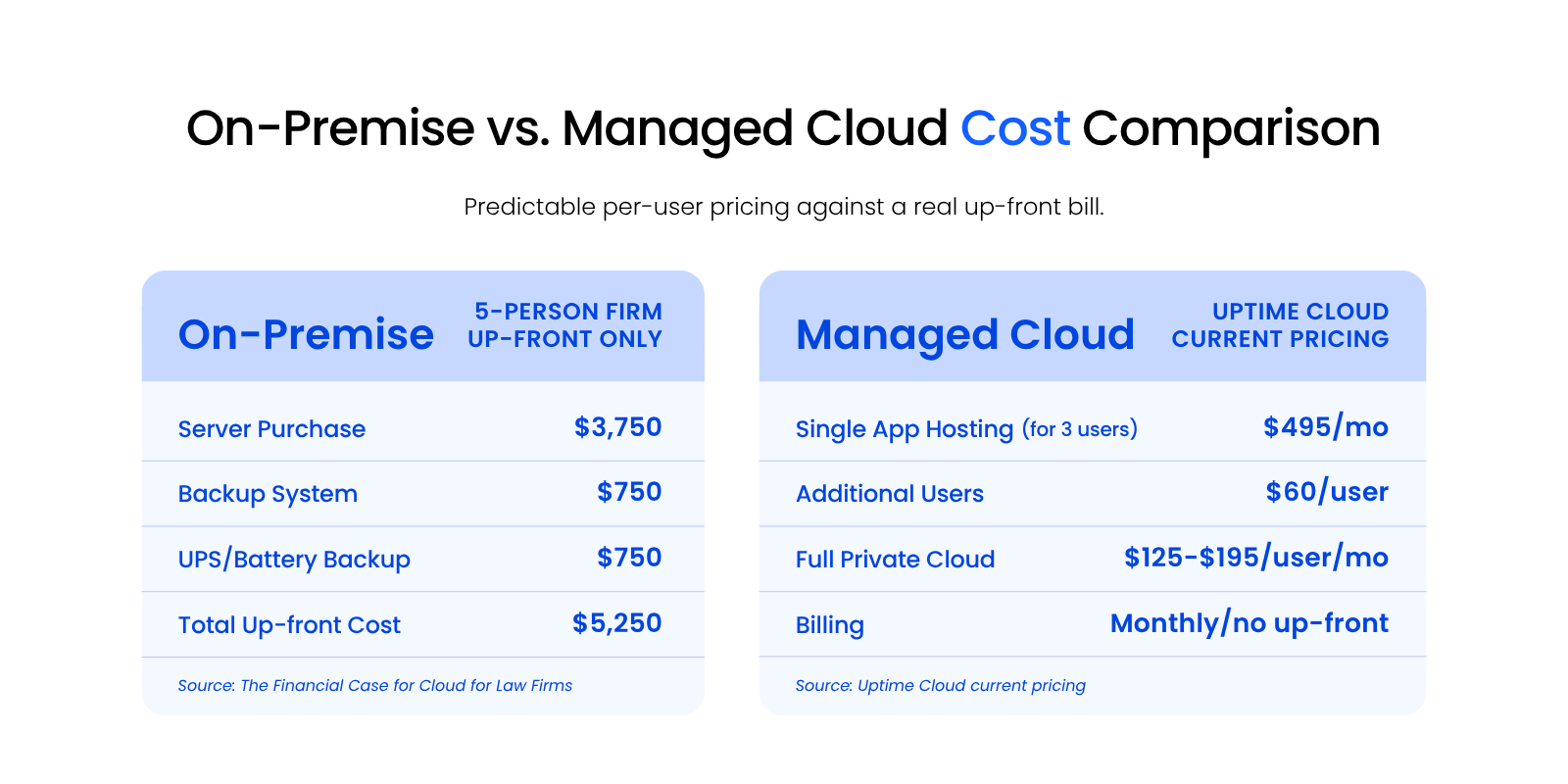
Private cloud costs typically include:
That structure covers hosting, storage, software support, and IT help desk together, rather than arriving as a dozen separate line items from a dozen separate vendors. Fully managed private cloud costs are simple, clear, and predictable. That matters most when the alternative is a bill you can’t see coming.
The Financial Case for Cloud
A deeper look at the real cost math firms run before committing to cloud infrastructure.
Doing Your Due Diligence and Mitigating Risk
Not every private cloud provider is built the same way, and the differences matter more than a sales pitch usually lets on.
Before signing with any provider, check:
Our Tabs3 support page covers software-specific maintenance directly, but hosting due diligence is a separate question your provider needs to answer too.
Don’t take any of it on faith. Get references and actually call them, ask for case studies, and read the provider’s Google reviews before you sign anything.
Is Hosting Tabs3 in the Cloud Right for Your Firm?
Tabs3 Doesn’t Need a Server Room to Run Well
Tabs3 and PracticeMaster don’t need a server room to keep working the way your firm already relies on them. A private cloud gives you the same software and the same workflows, minus the hardware headaches and the guesswork around cost.
What changes is where the risk sits. Migration follows a defined process, day-to-day access gets easier, and your provider carries the burden of uptime and security instead of your firm carrying it alone. The work now is picking a provider whose track record and pricing hold up to real scrutiny.
WHAT’S NEXT
Frequently Asked Questions

Uptime Legal’s Technology Solutions
Cloud, software, IT, and document management built for today’s law firms.